
 AI Document Summary
This document covers the back-end portal workflow for creating and configuring vouchers and coupons in SnowCloud. It walks operations and customer success teams through accessing the marketing tools, building a voucher or coupon, setting discount rules, tracking sent coupons, and generating code batches for bulk distribution.
NAVIGATING TO VOUCHERS & COUPONS #
Vouchers and coupons are managed under the marketing section of the portal.
To open the vouchers and coupons menu:
- From the left-side menu, select Marketing
- Navigate to Content Tools
- Select Vouchers and Coupons
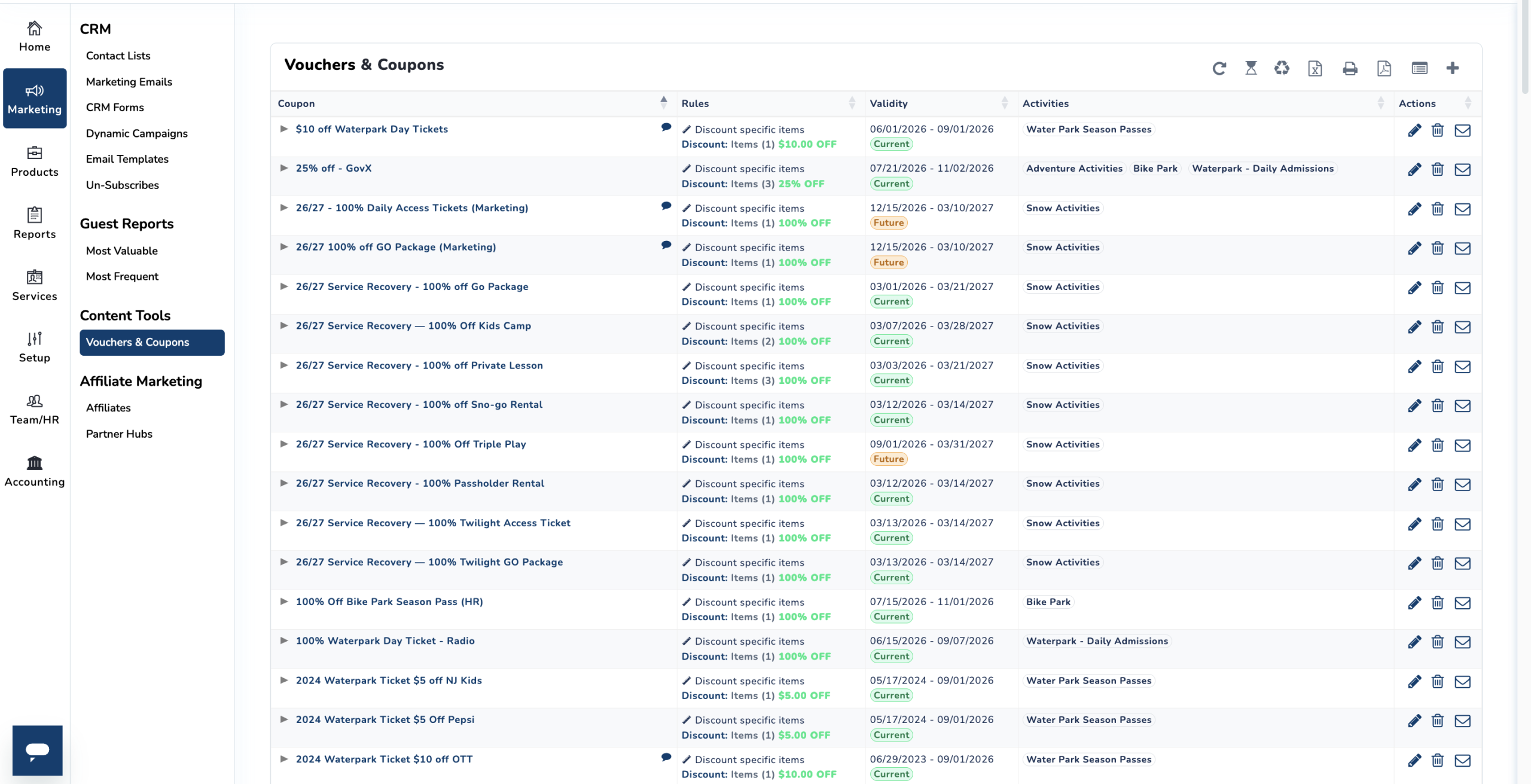
You will land on the main vouchers and coupons page, where all existing items are listed and new ones can be created.
CREATING A VOUCHER OR COUPON #
A Voucher or Coupon is a discount item that can be issued to guests for use at checkout. Each voucher or coupon is configured with a coupon type, accounting classification, validity window, and usage limits.
To create a voucher or coupon:
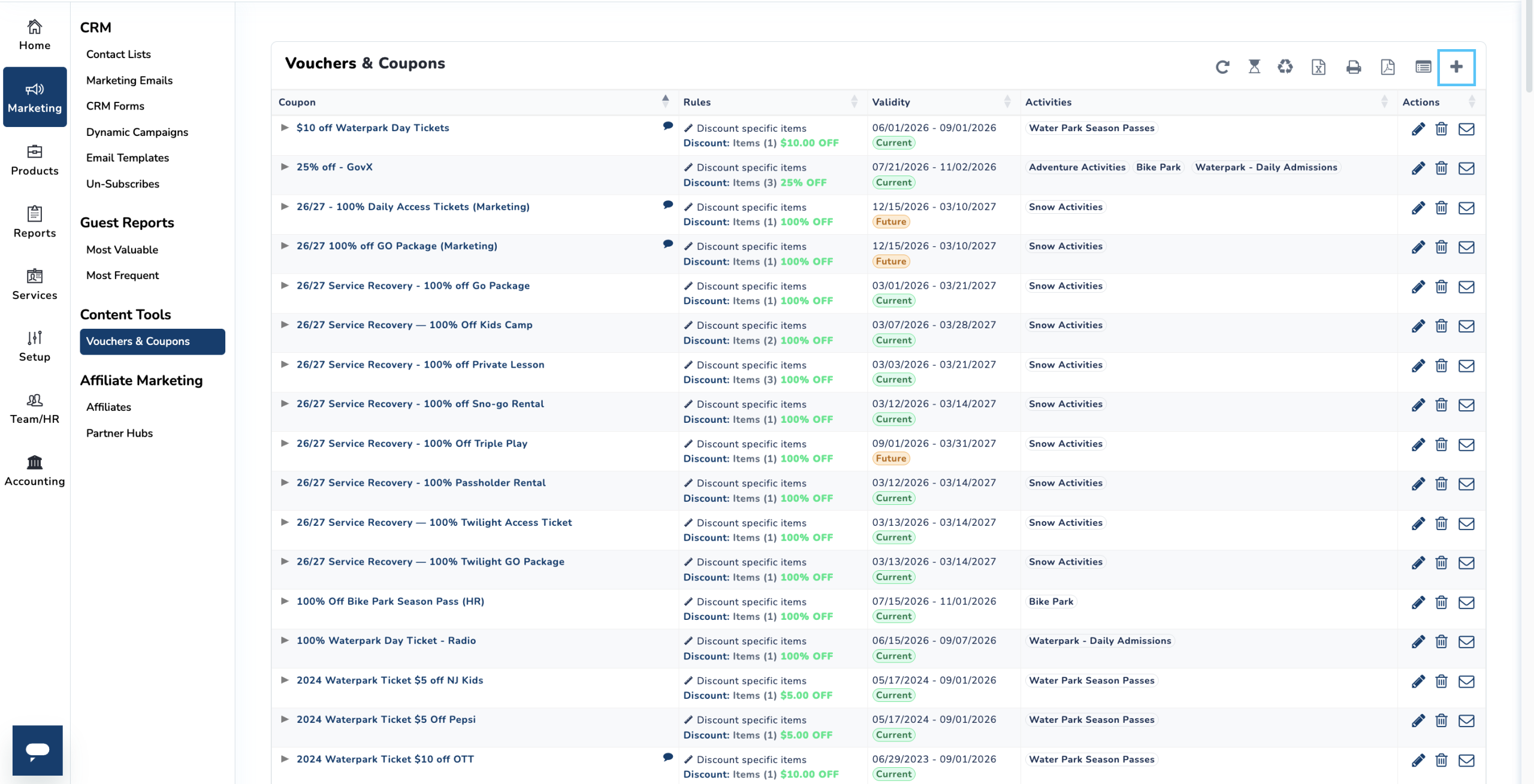
- From the Vouchers and Coupons page, press the plus (+) button in the top-right corner
- Fill in the following fields:
- Activities
- Coupon Type — select one of the following:
- Single-Use Coupons
- Multi-Use Coupons
- Bulk Service Recovery
- GL Classification
- Coupon Title
- Valid From Date — Expiration Date
- Max Uses
- Coupon Description
- Save the new voucher or coupon
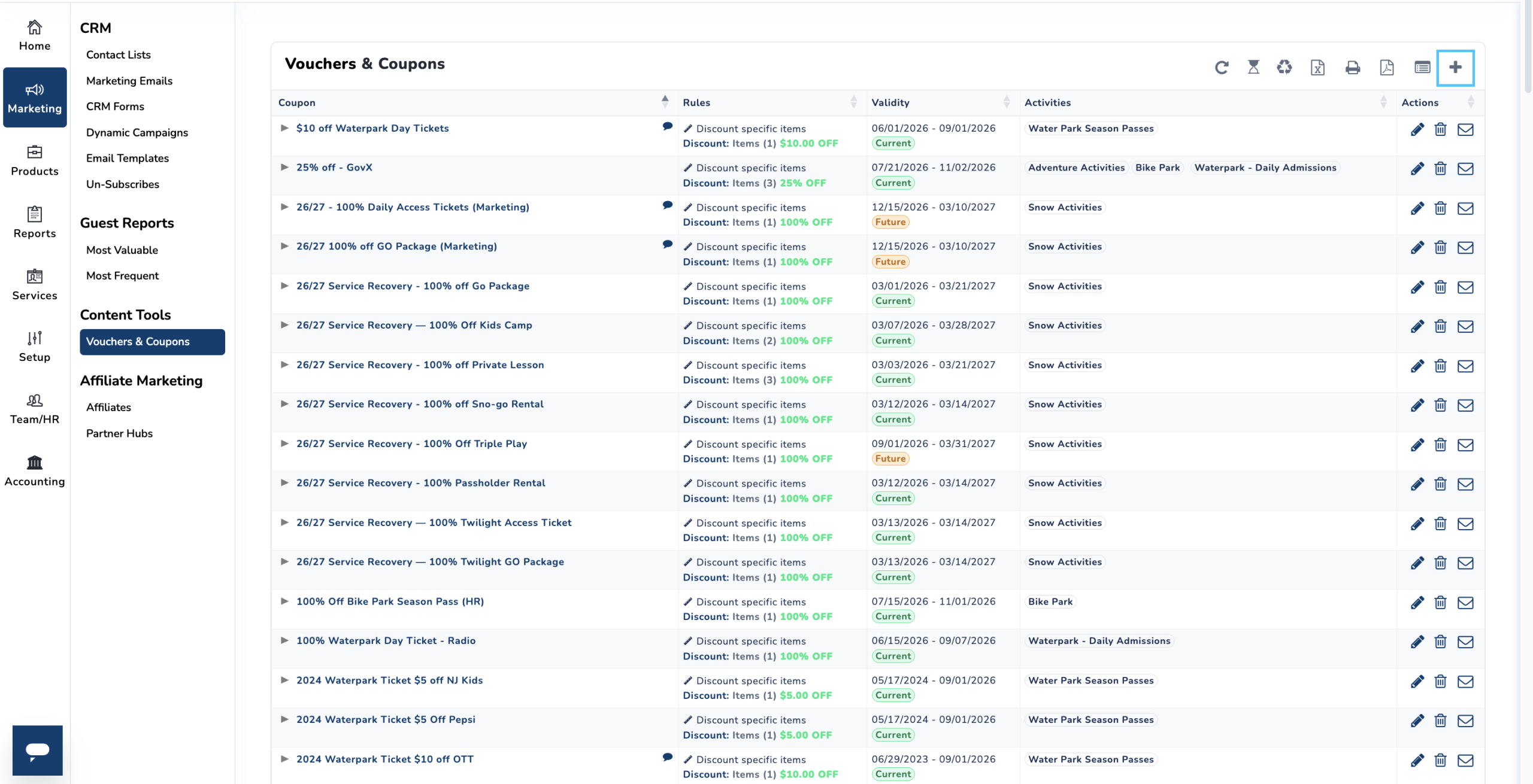
Once created, you will be brought to the configuration screen where additional rules and settings can be applied.
CONFIGURING DISCOUNT RULES #
After the voucher or coupon is created, discount rules define how much is taken off and when the discount applies.
To create a discount rule:
- Open the voucher or coupon you just created
- Locate the Discount Rules section
- Add a new rule and fill in the following:
- Title — the name of the discount rule
- Percent Off — the percentage discount applied
- Applicability — the conditions under which the rule will be applied
- Save the rule
Multiple discount rules can be added to a single voucher or coupon if different conditions require different discount values.
TRACKING SENT COUPONS #
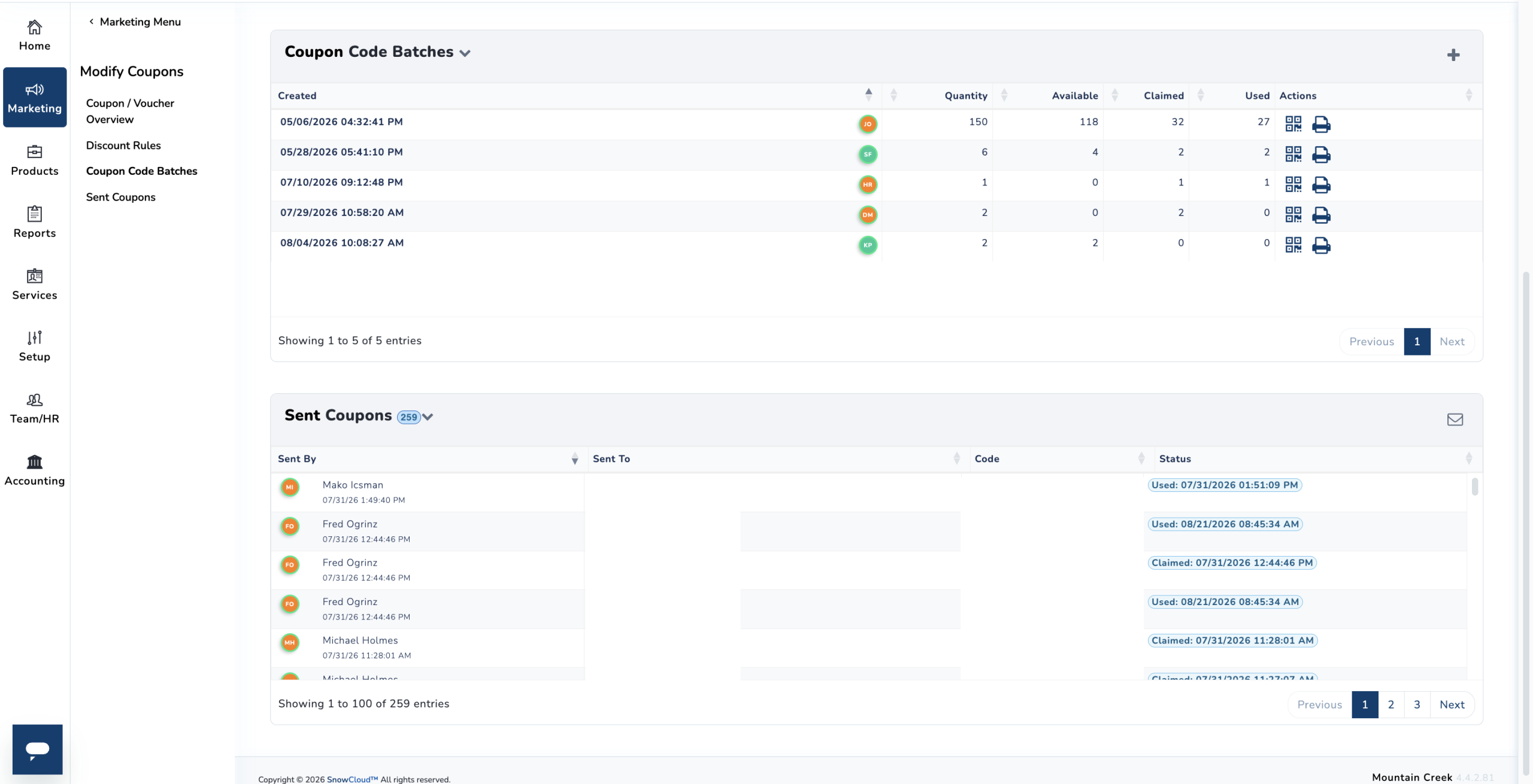
The Sent Coupons Tracking section is available within each voucher or coupon. This area displays the distribution and usage history for the item.
Use this section to:
- Monitor which coupons have been sent
- Track redemption activity
- Audit usage against the configured Max Uses limit
This tracking view is especially useful for Single-Use Coupons and Bulk Service Recovery items where redemption needs to be accounted for individually.
CREATING CODE BATCHES #
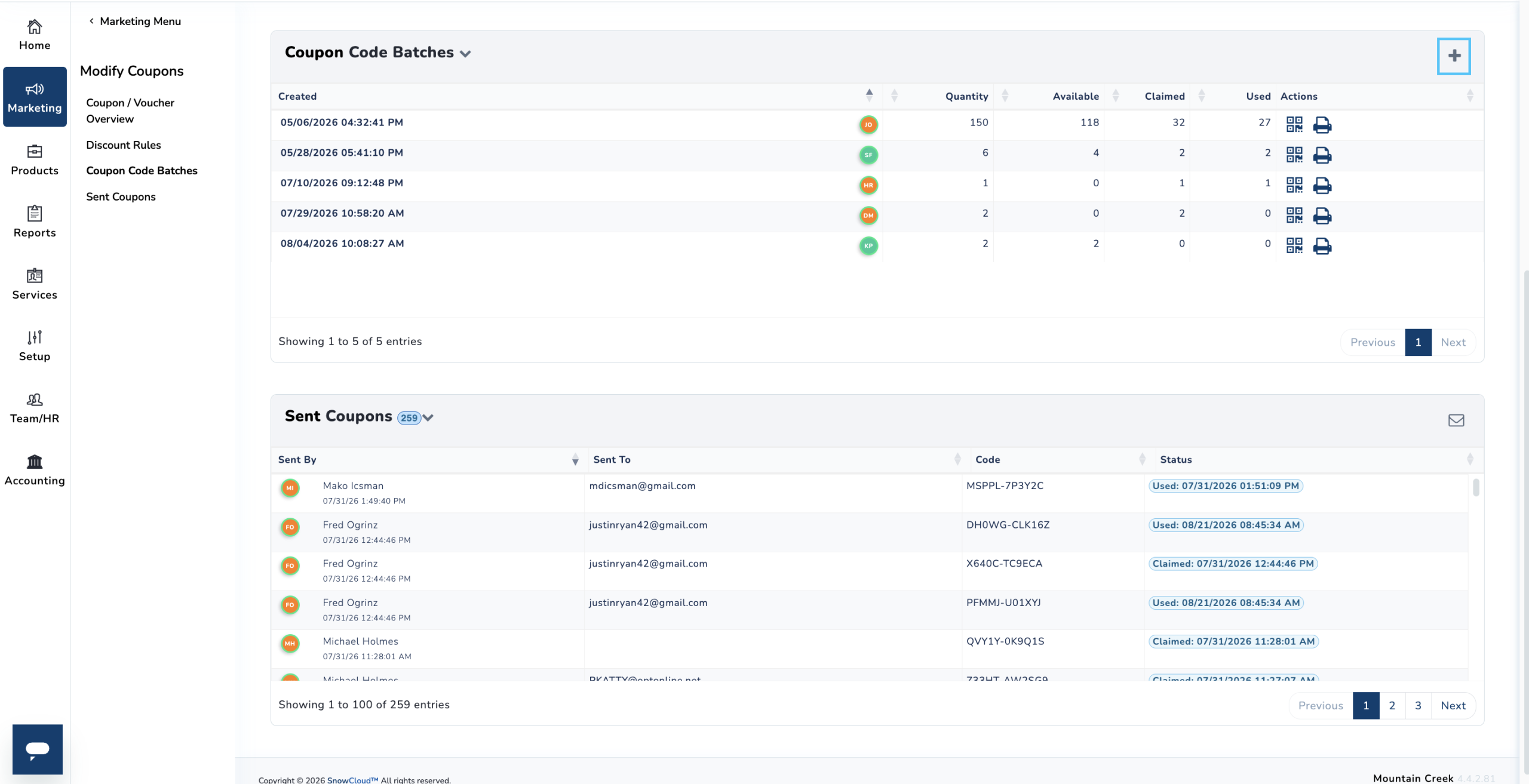
Code Batches are used when a large quantity of unique discount codes is needed — for example, for a promotional campaign or bulk service recovery event. Each batch generates a set of numerical codes tied to the voucher or coupon.
To create a code batch:
- From inside the voucher or coupon, locate the Code Batches section
- Select the option to create a new batch
- Configure the batch with the desired number of codes
- Save the batch
The system will generate the numerical codes, which can then be distributed to guests for redemption.
ENABLING GUEST TRANSFER ON A COUPON #
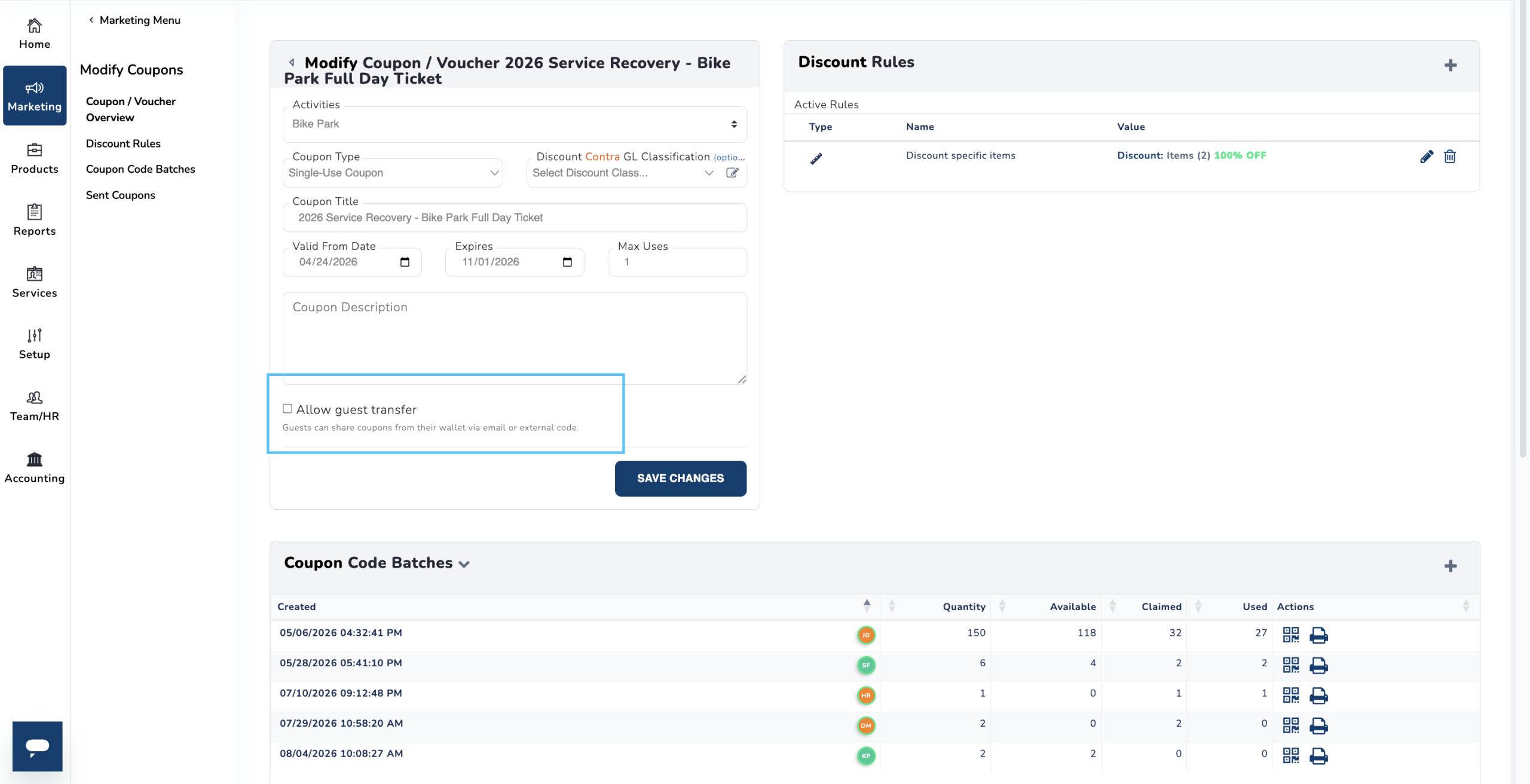
The Allow Guest Transfer setting can be enabled on any new or existing coupon. When enabled, guests who receive the coupon can share its code with others.
To enable guest transfer:
- Open the coupon you want to configure — either create a new one or select an existing coupon to edit
- Scroll to the bottom of the coupon configuration menu
- Check the Allow Guest Transfer box
- Save the coupon
THE GUEST TRANSFER EXPERIENCE #
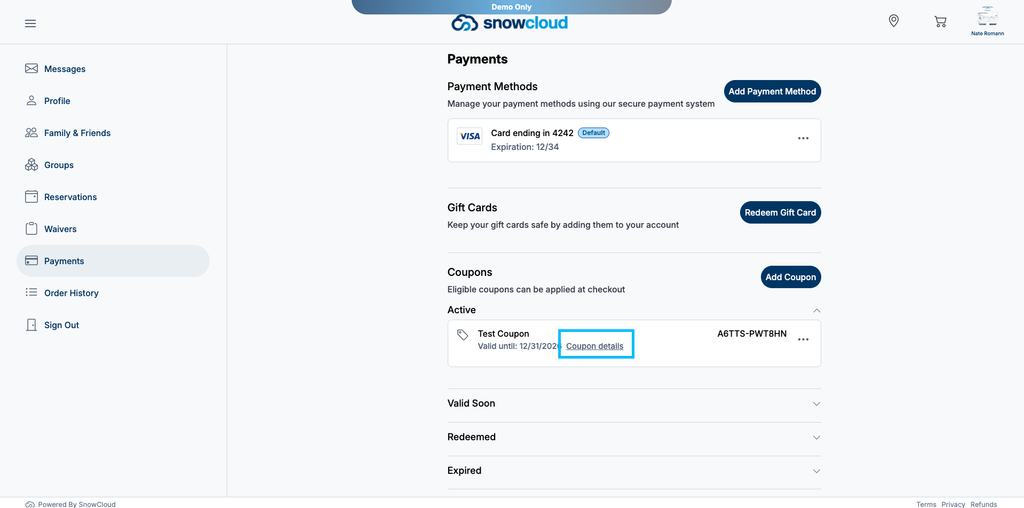
Once a transferable coupon has been sent to a guest, they can access and share it directly from their guest profile.
To locate and share a coupon:
- The guest navigates to the Payment section of their guest profile
- They scroll down to the Coupons section, where active received coupons are listed
- They select Coupon Details on the coupon they want to share
- From the Coupon Details view, the guest can either:
- Copy their coupon code to distribute manually
- Share via email to send the code directly to another guest
Once shared, the coupon code is redeemable by any guest who receives it.
REDEEMING A TRANSFERRED COUPON ON THE ESTORE #
Once a guest has received a transferred coupon, they can redeem it at checkout on the eStore.
To redeem a transferred coupon:
- Add the applicable product to your cart on the eStore — you can find it by following the link in the coupon email you received, or by navigating to the eStore directly and signing in
- Proceed through the purchase flow to the Payment Information step
- At the payment screen, you will see a pre-populated checkbox containing your coupon or voucher
- Check the box to apply the coupon — your updated total will reflect the discount immediately
- Continue through the purchase as normal