AI Document Summary
This document covers the SnowCloud Access Control workflow for frontline team members operating the Operator App. It walks through connecting a media reader, scanning guest passes, encoding media through sale codes and guest profiles, and using access mode for information lookup.
CONNECTING A MEDIA READER #
Before scanning, the media reader must be paired to the device through the SnowCloud app. Pairing is completed through Device Settings on the main dashboard.
To connect a media reader:
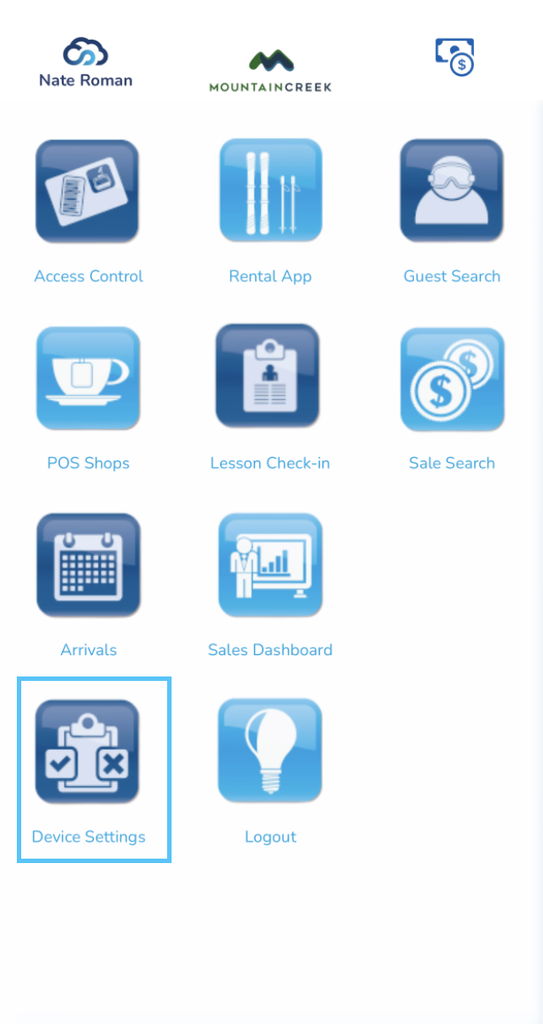
- From the main dashboard, navigate to the bottom-left corner and select Device Settings
- Locate the Access Control section
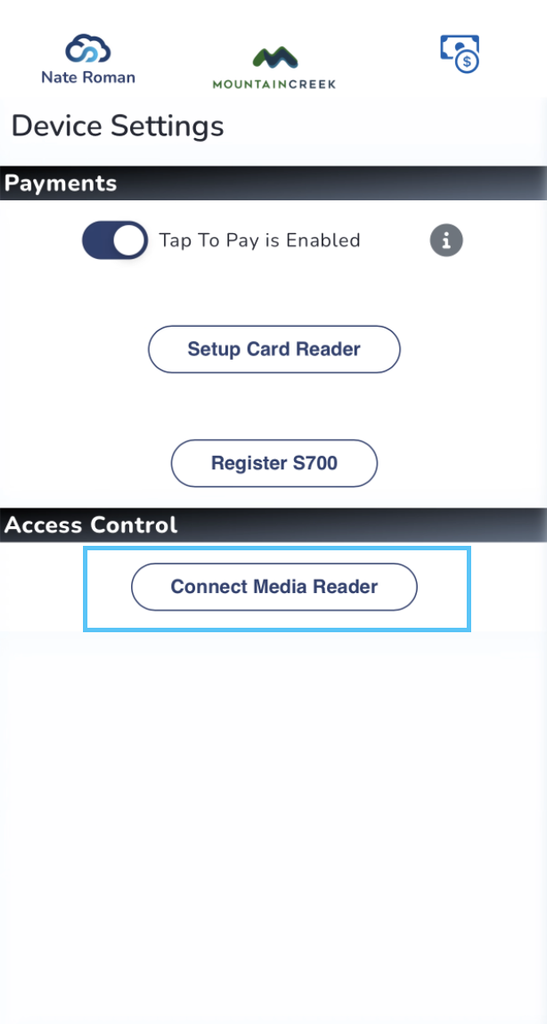
- Select Connect Media Reader
- The app will begin linking to any media reader that has already been paired within the device’s Bluetooth settings
- Once the reader is connected, press the cloud icon in the top-left corner to return to the home screen
Note for operations teams: The media reader must first be paired through the device’s Bluetooth settings before it will appear as available to connect inside the SnowCloud app. Confirm Bluetooth pairing is complete before attempting to connect through Device Settings.
OPENING THE ACCESS CONTROL APP #
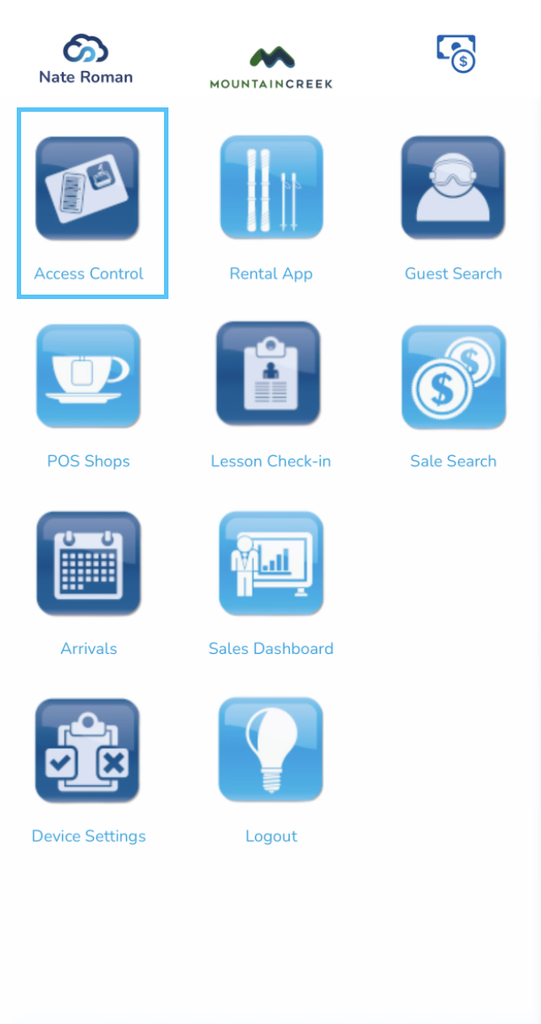
From the home screen, all available SnowCloud applications are displayed as app icons. The Access Control section is located in the top-left group of apps.
To open Access Control:
- From the home screen, select Access Control
- The current access control location will be displayed at the top of the screen
- To change locations, select the cog wheel next to the location name and choose the correct location from the list
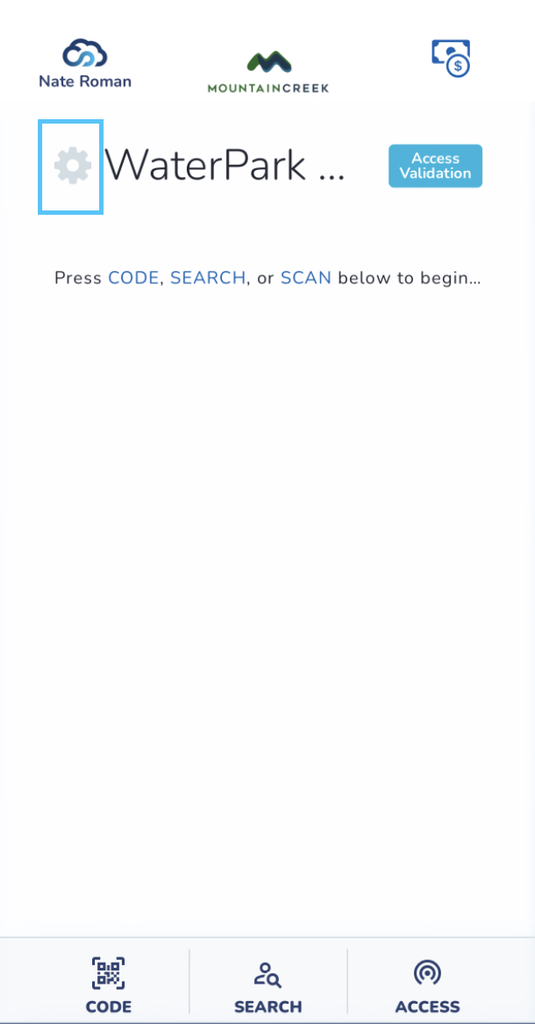
Important: Always verify you are scanning at the correct location before beginning. Scanning under the wrong location will result in inaccurate data across reporting and access logs.
SCANNING GUEST MEDIA #
Once the media reader is connected and the correct location is selected, guest media can be scanned for access verification.
To scan a guest’s media:
- Hold the guest’s pass to the connected media reader
- The screen will display the following information:
- Access Entitlement scanned
- Validity status (valid or invalid)
- Guest Information
- Confirm the entitlement is valid and grant or deny access accordingly
ENCODING MEDIA VIA BARCODE / QR CODE #
Encoding media assigns a purchased product to a physical pass so the guest can use it for access. The fastest method when a guest has their sale code on hand is to scan the code directly with the barcode / QR code reader.
To encode media using a sale code:
- From the Access Control screen, select the barcode / QR code reader in the bottom-left corner
- Scan the guest’s sale code
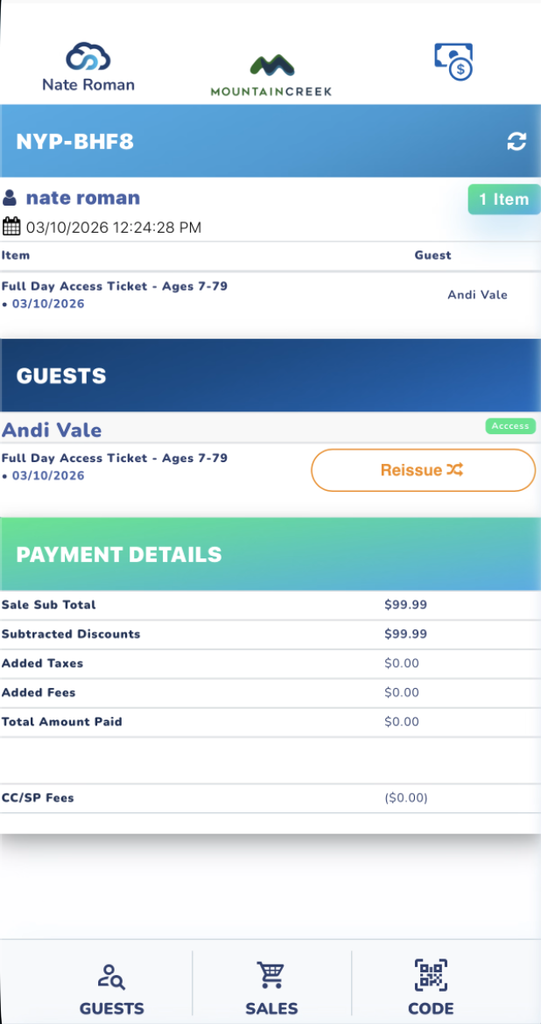
- The product associated with the sale will be encoded onto the guest’s media
This method is the most efficient for individual guests who have their sale code readily available.
Important: Some access entitlements are configured as “use” only for quick check-in functionality. In this configuration, no media is encoded — access is granted by simply tapping the Use button. Confirm the entitlement type before scanning to ensure the correct workflow is being used.
ENCODING MEDIA VIA GUEST SEARCH #
The guest search function allows you to pull up a guest’s profile directly and encode their media without needing the sale code. It also allows access to the guest’s full sales history for streamlined encoding of group or family purchases.
To encode media using guest search:
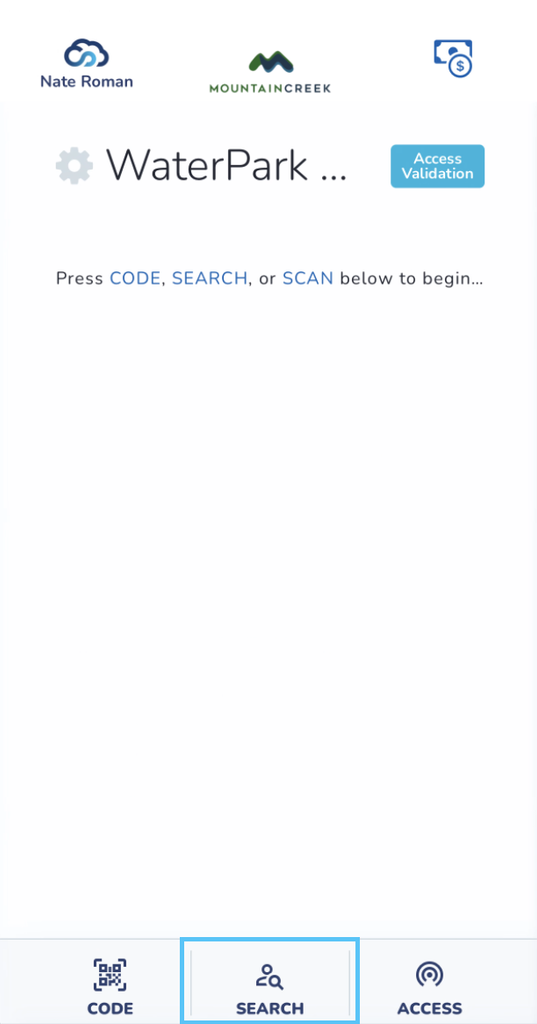
- From the Access Control screen, select the guest search option in the bottom-middle of the screen
- Search for the guest by name, phone number, or email
- Open the guest profile to encode their media directly, or pull up their sales history to access a specific sale code as if it had been scanned
Use case — Family of 4: A guest cannot locate their sale code but is part of a family of 4 with a single receipt. Using guest search to pull up the sale displays the full family purchase, allowing each person’s media to be encoded with a single button press per guest. This is significantly faster than searching each family member’s profile individually and encoding them one by one.
Note for operations teams: Guest search is the recommended workflow for group, family, and corporate purchases where multiple media items need to be encoded against a single sale.
ACCESS MODE — INFORMATION LOOKUP #
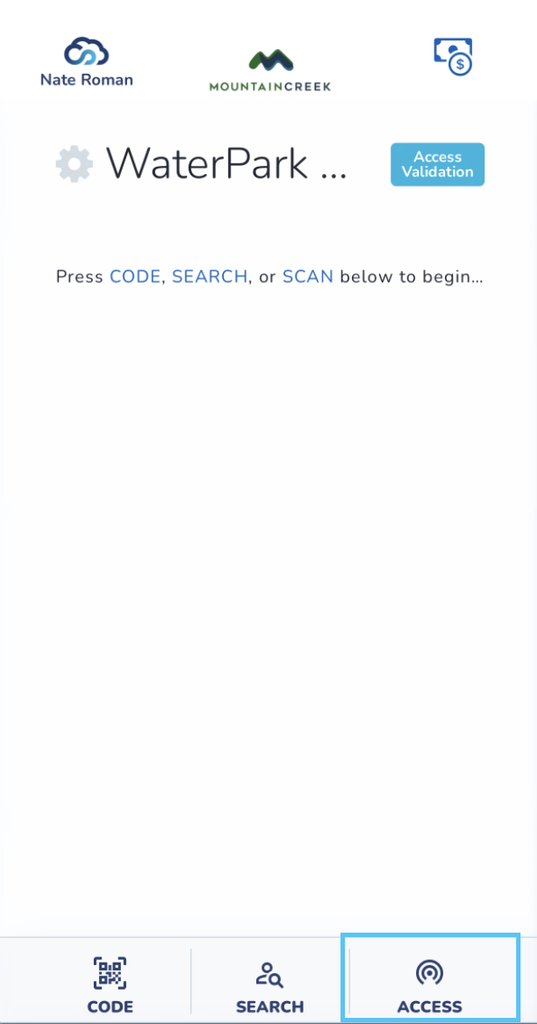
Access Mode allows you to scan a guest’s media to view their guest information without registering a scan as an access event. This is useful when verifying details on multi-day or limited-use products without consuming a day or use.
To use Access Mode:
- From the Access Control screen, select Access Mode in the bottom-right corner
- Scan the guest’s media
- Guest information will be displayed without registering a use against the entitlement