AI Document Summary
This document covers the back-end portal workflow for using the Arrivals Calendar in SnowCloud. It walks operations teams through navigating the calendar, filtering by product and date, and pulling up guest lists for any scheduled activity.
NAVIGATING TO THE ARRIVALS CALENDAR #
To open the Arrivals Calendar:
- From the left-side menu, select Services
- Select Arrivals Calendar
The calendar will load to the current date by default, displaying your active view for today.
CALENDAR OVERVIEW #
Product Filters #
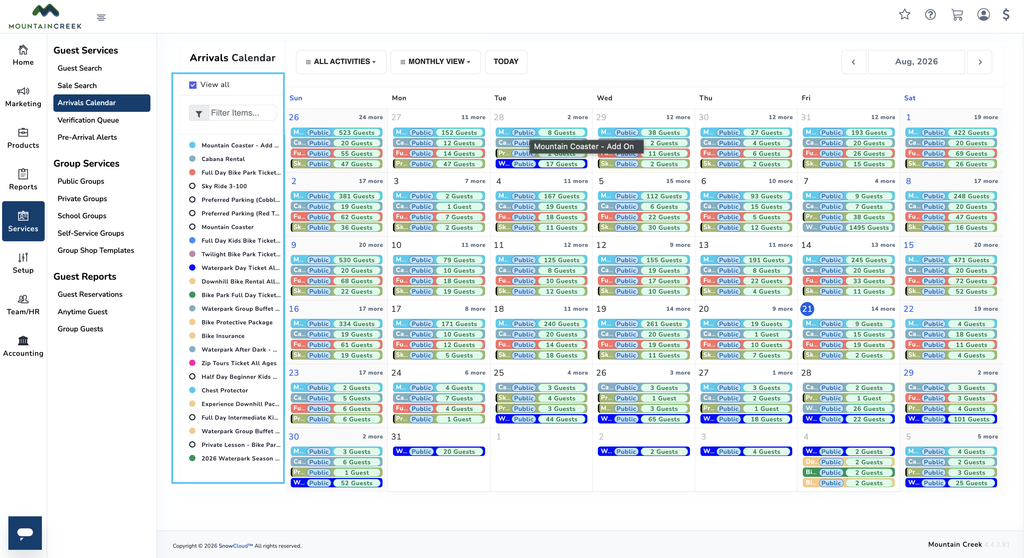
On the left side of the calendar, all of your active products are listed. Select any product to toggle it on or off in the calendar view. Use the View All button to toggle all products on or off at once.
Calendar Filters #
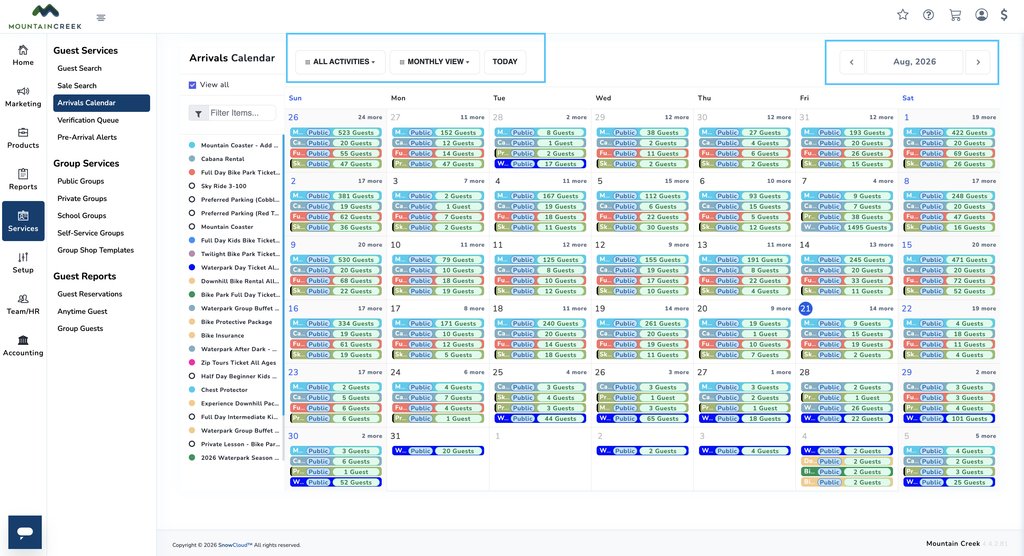
Along the top of the calendar, you can filter your view by:
- Activity Shop — filter by a specific shop or activity
- Daily, Weekly, or Monthly — switch between calendar display modes
- Date Selector — located in the top-right corner, use this to jump to any specific date
VIEWING GUEST ARRIVALS #
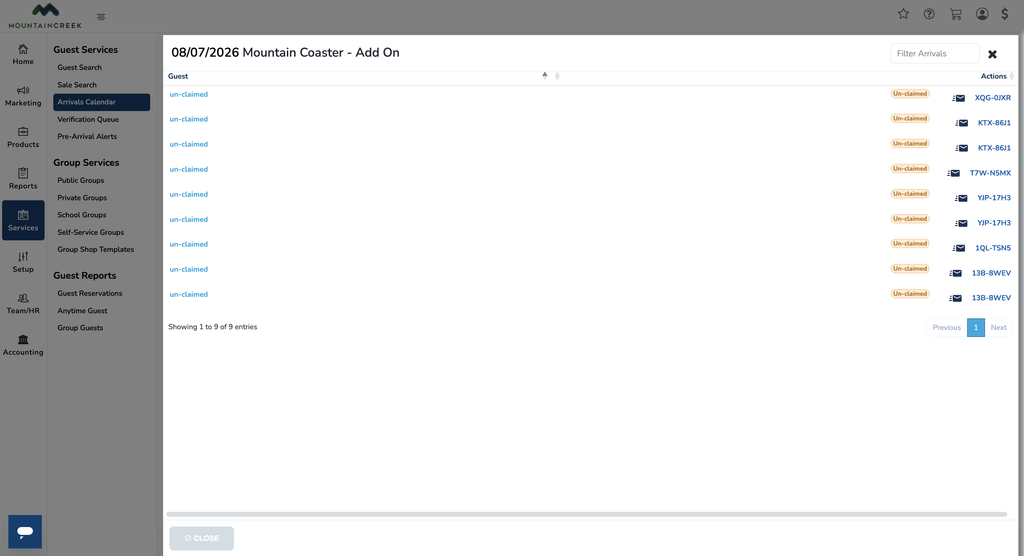
Selecting any item on the calendar will pull up a list of every guest who has that product assigned to that date. Use this view to review expected arrivals, verify bookings, and prepare for incoming guests.