
 AI Document Summary
This document covers the back-end portal workflow for creating and configuring discount entitlements in SnowCloud. It walks operations and customer success teams through building a discount entitlement, setting its scope and rules, and attaching it to products so guests automatically receive their discount perks at the point of sale.
NAVIGATING TO DISCOUNT ENTITLEMENTS #
Discount entitlements are managed under the accounting section of the portal.
To open the discount entitlements menu:
- From the left-side menu, select Accounting
- Select Discount Entitlements
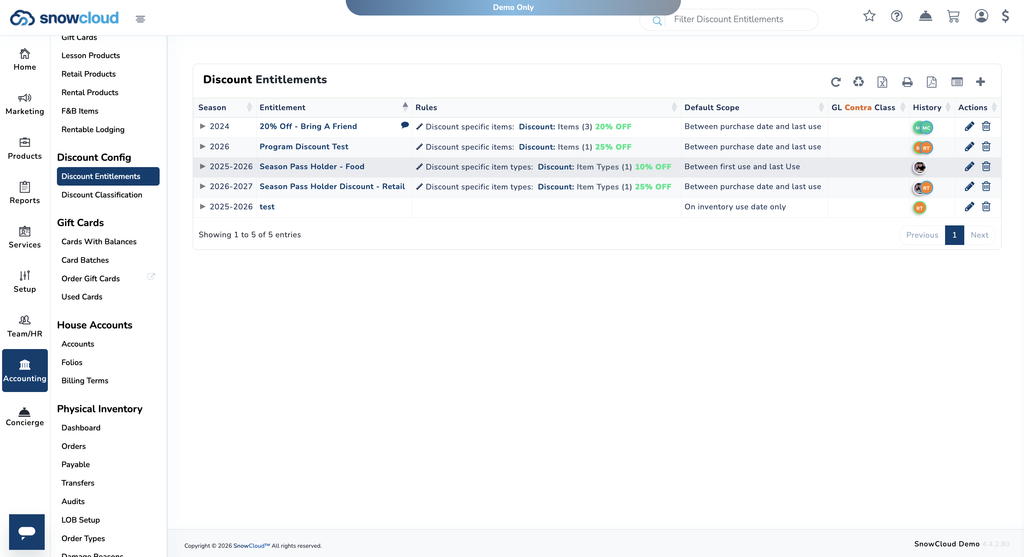
You will land on the discount entitlements page, where all existing entitlements are listed and new ones can be created.
CREATING A DISCOUNT ENTITLEMENT #
A Discount Entitlement defines the parameters of a discount that will eventually be attached to specific products. When a product carrying a discount entitlement is purchased, the guest automatically receives the associated discount perks.
To create a discount entitlement:
- From the Discount Entitlements page, press the plus (+) button in the top-right corner
- Fill in the following fields:
- Season
- Contra GL
- Name
- Scope — defines the window when the discount will be applicable. Options include:
- Between First and Last Use
- Between Purchase Date and Last Use
- On Inventory Use Date Only
- Uses — number of times the discount can be applied. Leave blank for infinite uses.
- Description (if applicable)
- Select Save and Add Rules
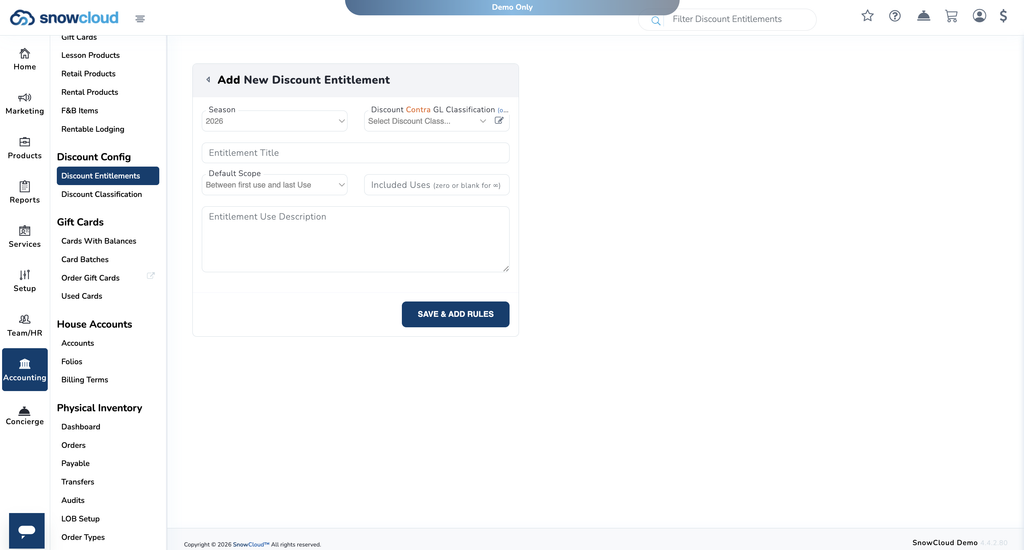
Once saved, you will be brought to the configuration screen where usage tracking and specific rules can be applied.
Note for operations teams: The Scope selected at creation determines when the discount is valid. Confirm the correct scope is selected before saving, as this setting drives how the discount behaves against the linked product.
CONFIGURING DISCOUNT RULES #
The configuration screen provides two key areas: a usage tracker showing where the discount has been applied, and a rule builder that defines when the discount will apply.
Usage Tracking #
The configuration screen displays a record of where the discount entitlement has been used. Use this section to:
- Monitor active application of the discount across sales
- Audit usage against the configured uses limit
- Identify patterns in how the discount is being applied
Entitlement Rules #
Entitlement rules define the specific conditions under which the discount will trigger.
To create a rule:
- From inside the discount entitlement, locate the Entitlement Rules section
- Add a new rule and configure the conditions for when the discount will apply
- Save the rule
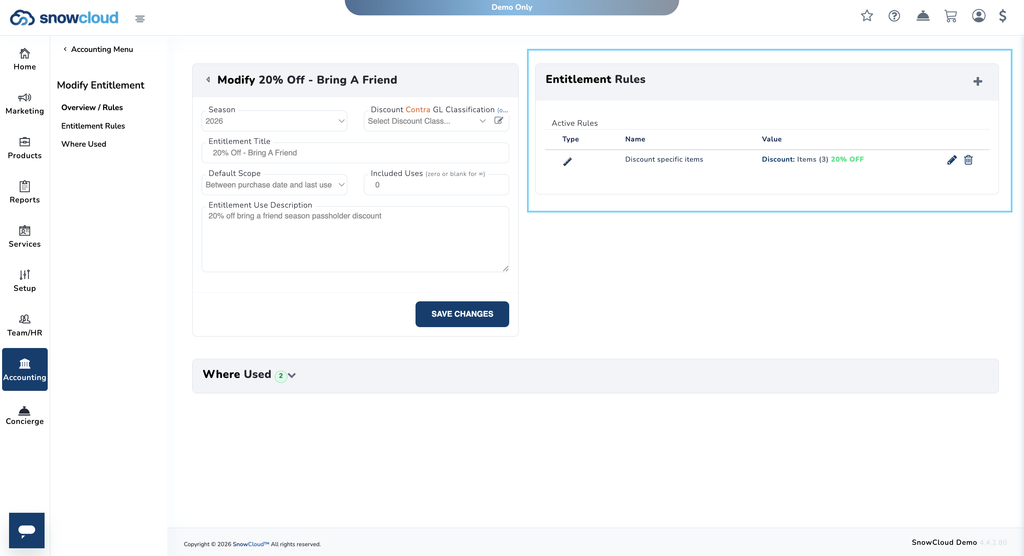
Important: Confirm that the entitlement’s Scope and its Rules align. A rule configured outside the entitlement’s scope window will not apply at checkout.
ATTACHING DISCOUNT ENTITLEMENTS TO PRODUCTS #
Once a discount entitlement is fully configured, it can be attached to specific products so that purchasing the product automatically grants the guest the associated discount perks.
To attach a discount entitlement to a product:
- Navigate to the product you want to attach the discount to
- Locate the Discount Entitlements section within the product configuration
- Select the plus (+) icon to add an entitlement
- Choose the discount entitlement from your existing library
- Save the product
Once attached, guests who purchase the product will automatically receive the discount perks configured on the entitlement.
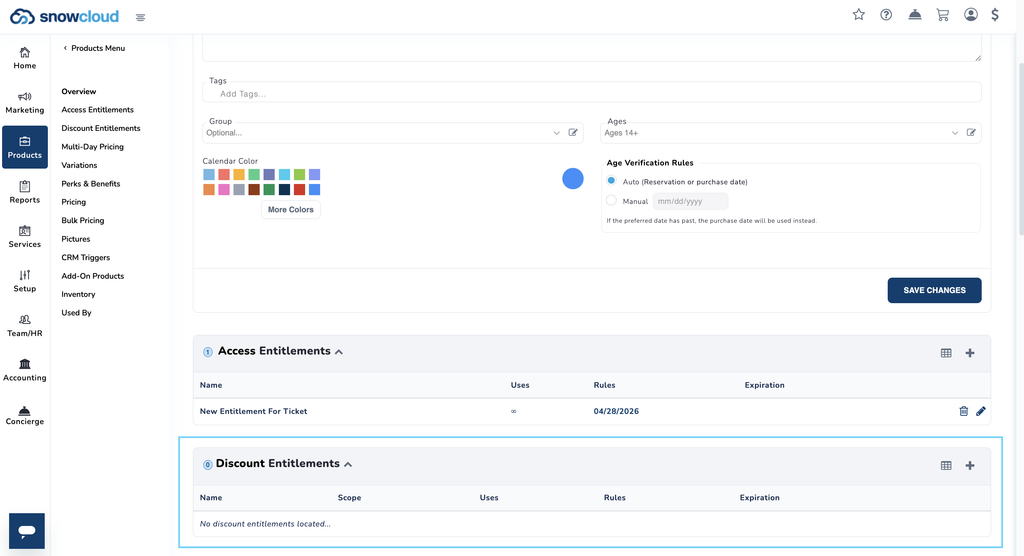
Note for operations teams: A discount entitlement can be attached to multiple products. Build the entitlement once, then reuse it across any product that should offer the same discount perks.