AI Document Summary
This document covers the back-end portal workflow for managing guest services in SnowCloud. It walks operations and customer success teams through sending coupons and vouchers directly to guests, searching and managing guest profiles, and locating sales for troubleshooting, refunds, and adjustments.
GUEST SERVICES OVERVIEW #
Guest services in the SnowCloud portal are broken into three primary functions, each accessible from the left-side navigation menu:
- Coupons and Vouchers — send existing coupons or vouchers directly to a guest via email
- Guest Search — locate a guest profile and manage their information, entitlements, history, and account details
- Sale Search — locate a specific sale to view details, refund, transfer, or adjust products
Note for operations teams: Coupon and voucher creation is covered in a separate guide. This SOP focuses on sending existing coupons or vouchers to a guest as part of the guest services workflow.
SENDING COUPONS AND VOUCHERS TO A GUEST #
Existing coupons and vouchers can be sent directly to a guest’s email from the coupons and vouchers list. Once sent, the coupon or voucher will appear in the corresponding guest profile.
To send a coupon or voucher to a guest:
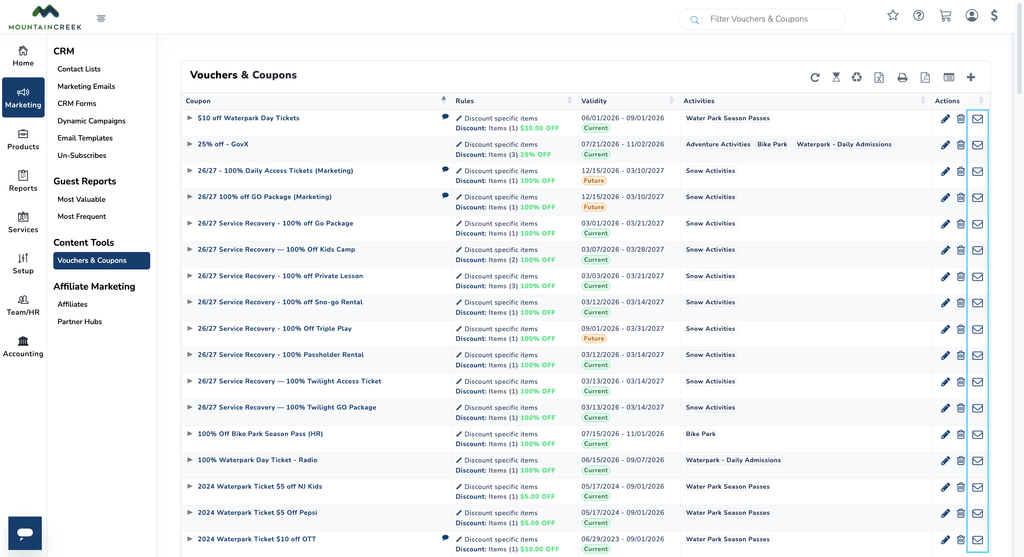
- From the left-side menu, select Marketing
- Navigate to Content Tools and select Coupons and Vouchers
- Locate the desired coupon or voucher from the list
- Select the mail icon on the far-left side of the entry
- Fill in the following:
- Recipient Email
- Quantity to send
- Select Send Coupons
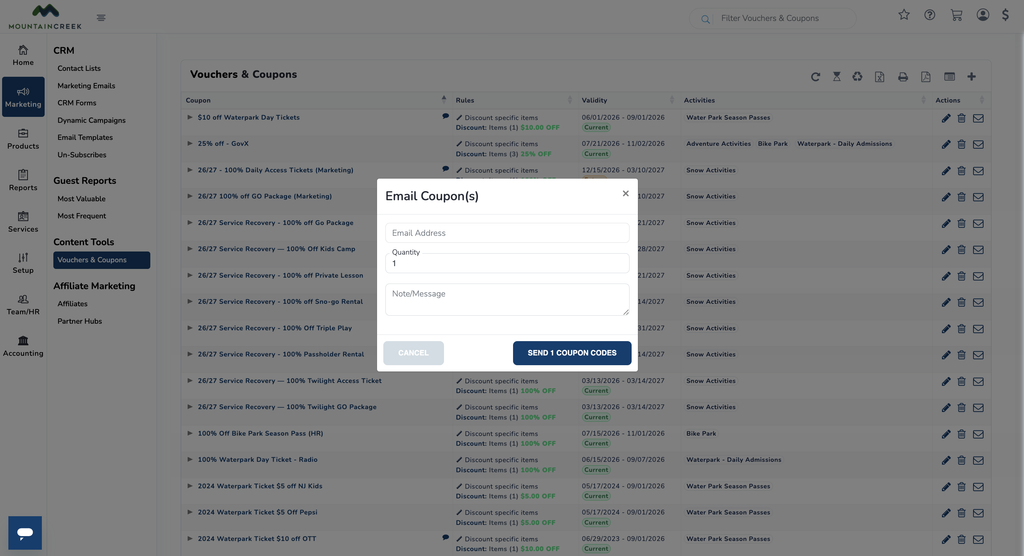
The coupon or voucher will appear directly inside the guest profile that corresponds with the email address entered.
GUEST SEARCH #
Guest Search is used to locate a guest profile for troubleshooting, updates, or reviewing account activity.
To search for a guest:
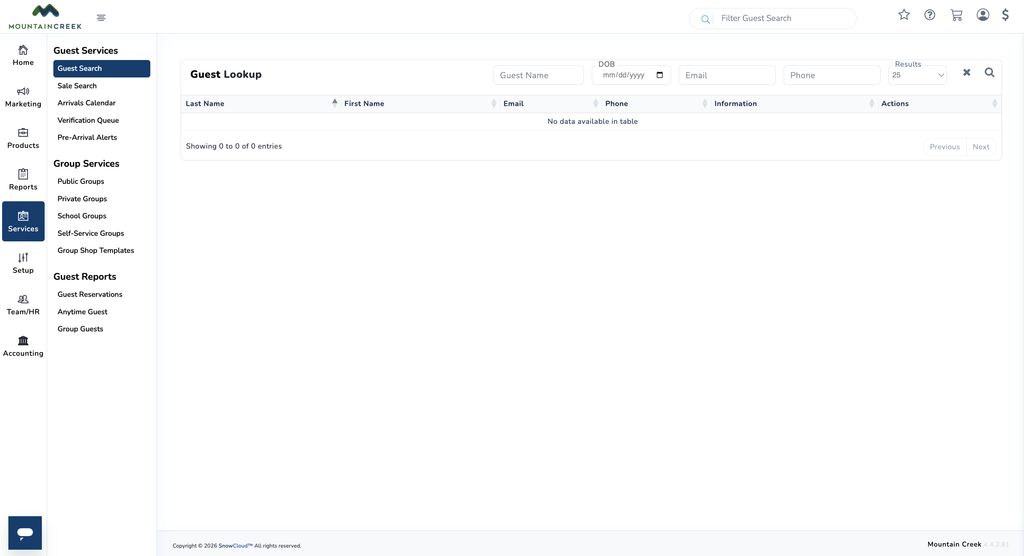
- From the left-side menu, select Services
- Under Guest Services, select Guest Search
- Search for the guest using any of the following:
- Name
- Date of Birth
- Phone Number
- Once the correct guest is located, press the next magnifying glass button on the far-right side of the entry to open the guest profile
NAVIGATING THE GUEST PROFILE #
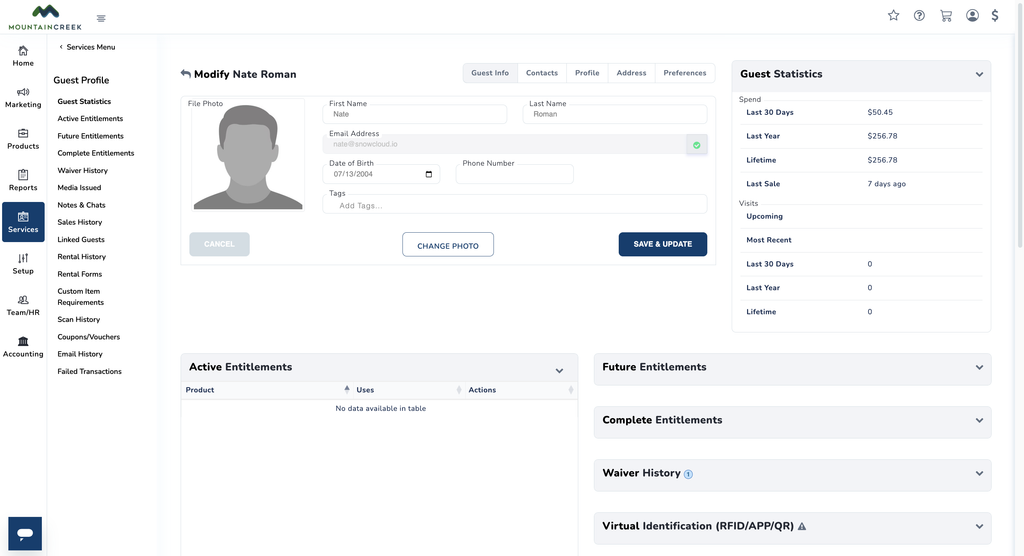
Inside the guest profile, all guest-related information, history, and account activity is available in one place. Certain fields can be edited directly from this view.
Editable Guest Information #
The following fields can be updated from the profile:
- Name
- Date of Birth
- Profile Picture
Guest Overview #
The profile displays an overview of key guest statistics and activity, including:
- Active Entitlements — currently valid entitlements
- Future Entitlements — entitlements scheduled for upcoming use
- Completed Entitlements — historical entitlements no longer active
- Waiver History — record of signed waivers
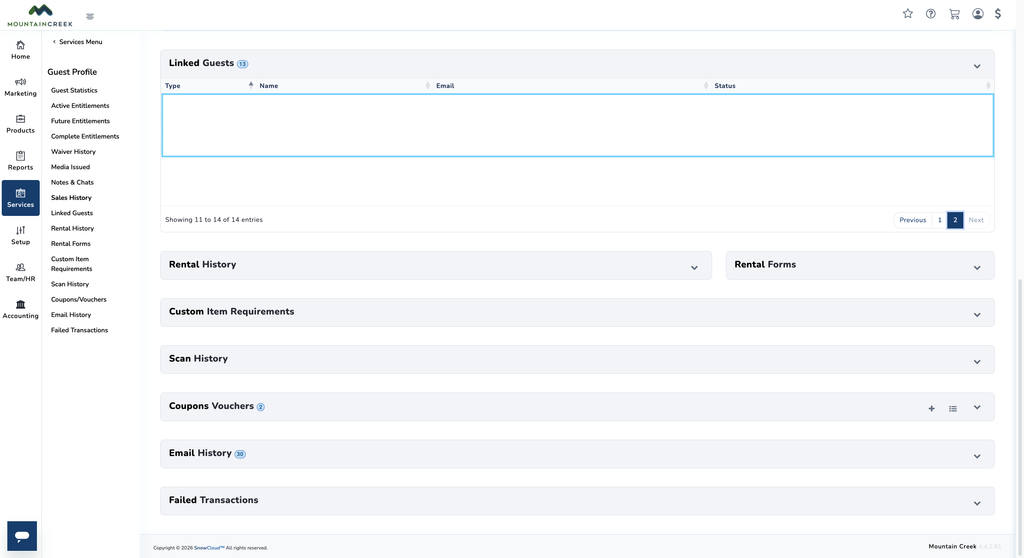
- Notes — comments left by other team members regarding sales, situations, or interactions, each timestamped with the author and date
- Linked Guests — associated guest profiles, allowing quick navigation between members of the same group or family
- Rental History — record of previous rental activity
- Scan History — locations and times where the guest’s media has been scanned around the resort
- Coupons and Vouchers — pool of all coupons and vouchers sent to the guest
- Email History — record of all emails sent to the guest, with the option to pull up and resend any email as needed
- Failed Transactions — record of any purchases that did not process successfully
- Sales History — record of the guest’s complete purchase activity
SALE SEARCH #
Sale Search is used to locate a specific transaction for review, adjustment, refund, or transfer. Sales can also be accessed through the guest profile’s Sales History, but Sale Search provides a direct path when the guest profile is not the starting point.
To search for a sale:
- From the left-side menu, select Services
- Under Guest Services, select Sale Search
- Search using any of the following:
- 7-Character Sale Code
- Guest Name
- Phone Number
- Last Four Digits of a Card
- Select the desired sale from the results to open the sale details
SALE DETAILS & ACTIONS #
Once inside a sale, several tools are available to view, adjust, or take action on the transaction.
Sale Overview #
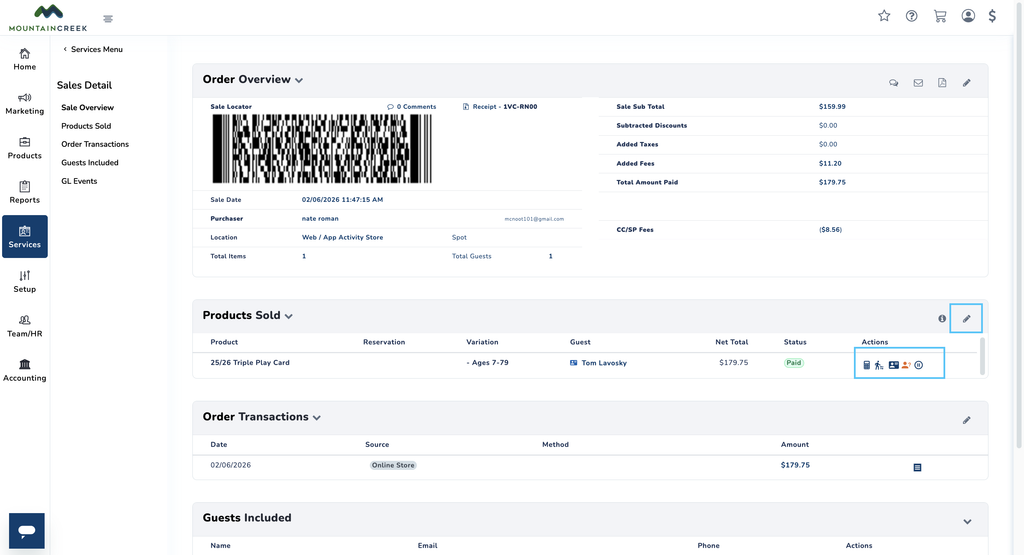
The sale details view displays:
- A barcode that can be scanned to pull the sale up in the Operator App
- A line item list of all products sold, including:
- Product Name
- Date
- Total Cost
- Guest Name
Actions Menu #
On the right side of each product line item, the following actions are available:
- Transfer Product (person icon) — transfer the product to another guest
- Guest Profile (blue badge icon) — jump back to the associated guest profile
- Hotlist — turn off the product for a defined start and end time
Edit Product (Pencil Icon) #
Selecting the pencil icon in the top-right corner of a product line item opens the edit view, which includes:
- Change Date and Time — reschedule the product to a different date or time (subject to inventory availability)
- Revoke — remove the product from the guest’s entitlements
- Hotlist — turn off the product for a defined window
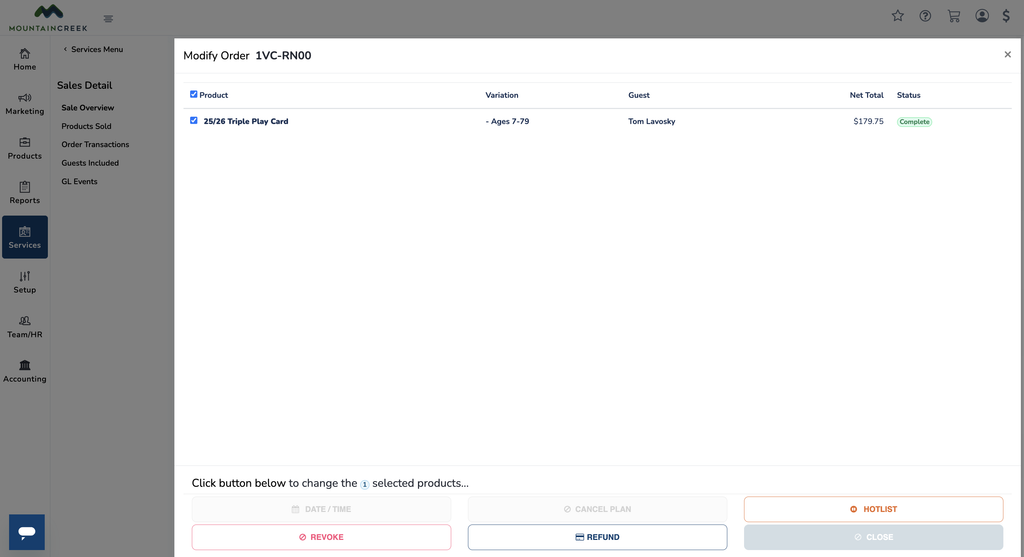
- Refund — process a refund for the item