
 AI Document Summary
This document covers the back-end portal workflow for creating and configuring subscription plans in SnowCloud. It walks operations and customer success teams through building a plan, configuring entitlements, and publishing it to the eStore.
NAVIGATING TO SUBSCRIPTION PLANS #
To navigate to Subscription Plans:
- From the left-side menu, select Products
- Under Activity Products, select Subscription Plans
CREATING A SUBSCRIPTION PLAN #
To create a new subscription plan:
- Press the plus (+) button in the top-right corner
- Fill in the following fields:
- Plan Name
- Billing Recurrence — select the billing interval (for example, Daily, Weekly, Monthly)
- Product Class — select the accounting classification for this plan
- Product Ages (optional) — select applicable age ranges if needed
- Activities — select the activities this plan includes, based on your configured locations
- Description — describe what guests will be buying into
- Under pricing, enter the following:
- Initial Payment — the upfront charge at the time of purchase
- Installment Price — the recurring charge at each billing interval
- Select Create Plan in the bottom-right corner
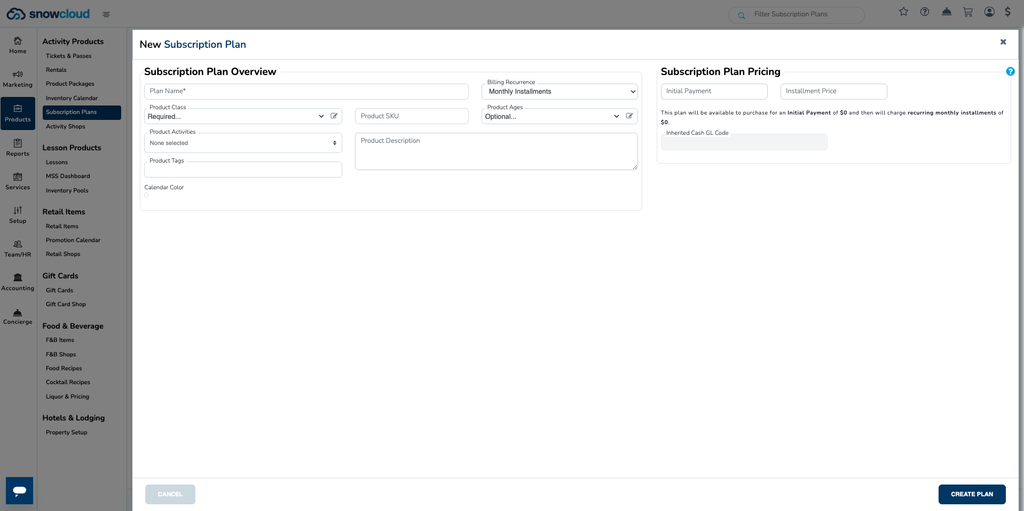
You will be brought to the plan configuration screen to complete setup.
PLAN CONFIGURATION #
The plan configuration screen is where entitlements, subscriber information, and plan photography are managed. Each section is accessible via its own tab.
Plan Entitlements #
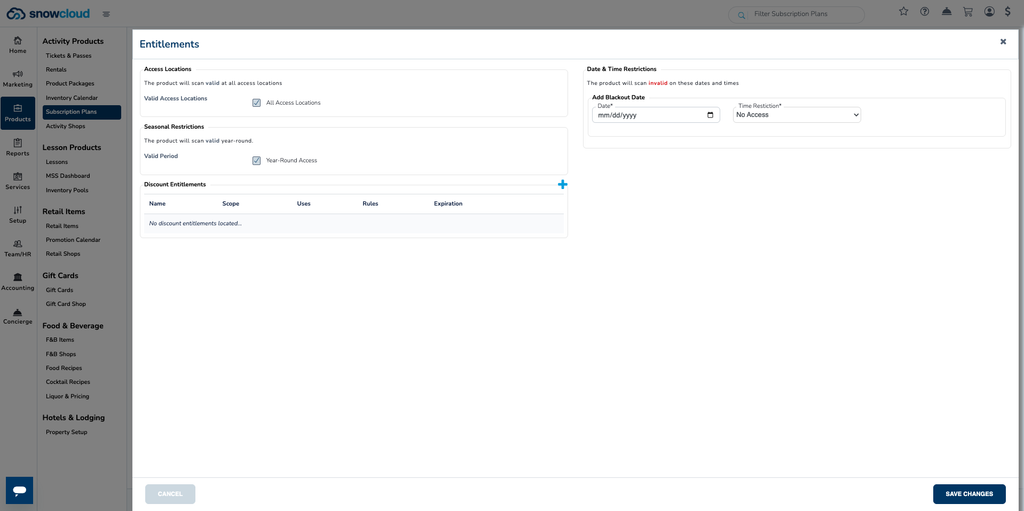
Plan Entitlements define the access rules attached to this subscription — what subscribers can access, when, and where.
To configure plan entitlements:
- From the plan configuration screen, select Plan Entitlements
- Configure the following as needed:
- Access Locations — restrict or allow access to specific locations
- Date and Time Restrictions — limit access to specific dates or time windows
- Seasonal Restrictions — apply season-based validity rules
- Add any Discount Entitlements applicable to this plan
- Select Save Changes in the bottom-right corner
Plan Subscribers #
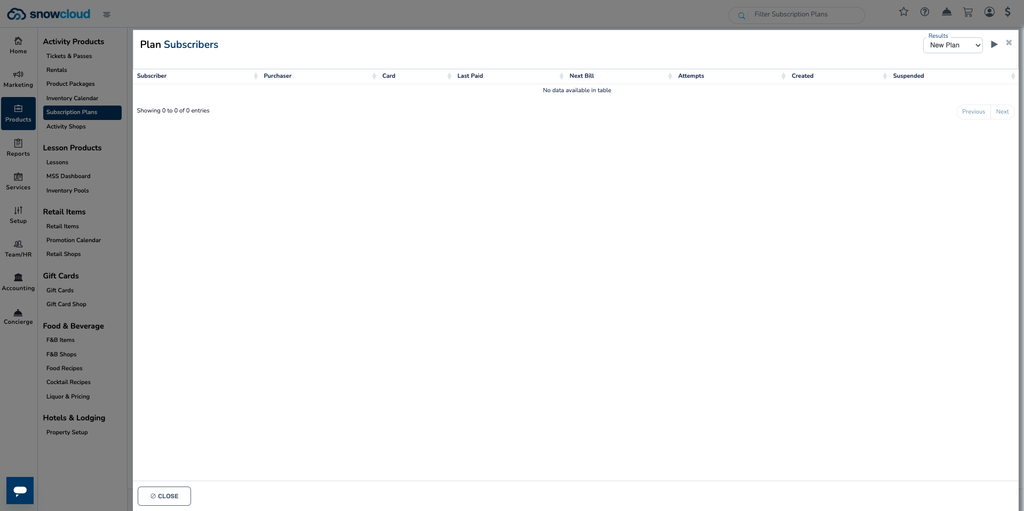
The Plan Subscribers tab displays a list of all active subscribers for this plan. For each subscriber, you can view:
- Guest name
- Card on file
- Next billing date
Plan Photographs #
The Plan Photographs tab allows you to upload images that will display on the eStore within this subscription plan listing.
To add plan photographs:
- Select Plan Photographs from the plan configuration screen
- Upload the desired image files
- Select Save Changes