
 AI Document Summary
This document covers the foundational portal configuration steps for new SnowCloud implementations. It walks operations and customer success teams through site settings, payment processing, general ledger setup, taxes and fees, and product classifications.
SITE SETTINGS #
Site settings are the foundational configuration for the operation — account identity, branding, tracking integrations, and guest-facing visual assets.
To navigate to Site Settings:
- From the left-side menu, select Setup
- Select Site Settings
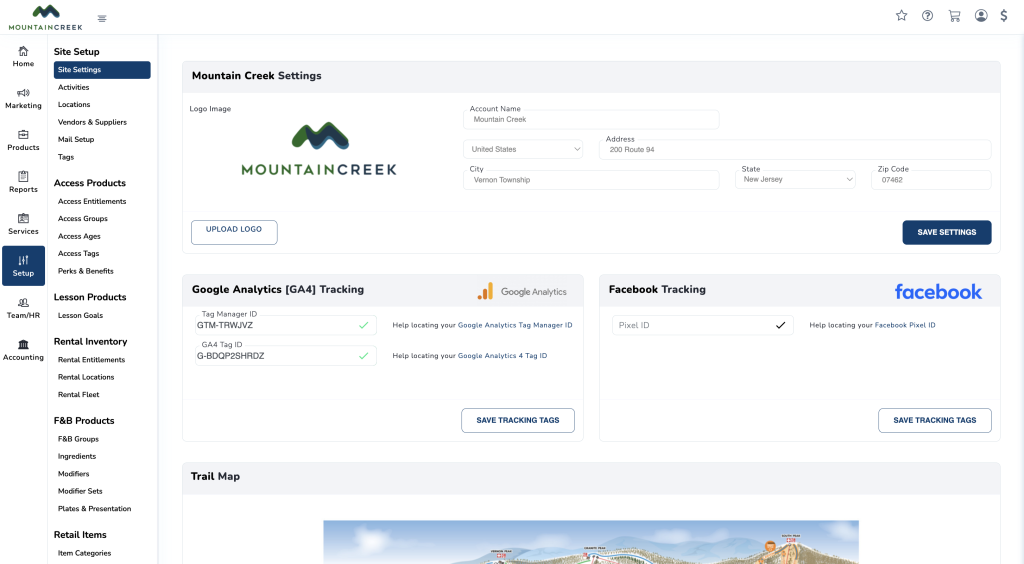
You will land on the Site Settings page, where account information, tracking integrations, and other core configurations can be updated.
Account Information & Logo #
The top of the Site Settings page is where the account’s foundational information is configured. This information represents the operation across the platform.
To configure account information:
- Upload the account logo
- Enter the account name
- Enter the address
- Select Save
Google Analytics GA4 Tracking #
Google Analytics tracking allows the operation to monitor guest activity across its digital surfaces. SnowCloud supports Google Analytics 4 (GA4) through Google Tag Manager.
To configure GA4 tracking:
- Enter the Tag Manager ID
- Enter the GA4 Tag ID
- Select Save Tracking Tags
Facebook Tracking #
Facebook tracking allows the operation to monitor guest activity for advertising and audience insights through the Meta Pixel.
To configure Facebook tracking:
- Enter the Pixel ID
- Select Save Tracking Details
Uploading a Trail Map #
The trail map is the visual representation of the operation’s terrain, displayed across guest-facing surfaces where relevant.
To upload a trail map:
- Locate the Trail Map section on the Site Settings page
- Upload the trail map image file
- Select Save