
 AI Document Summary
This document covers the guest-facing profile navigation on the SnowCloud eStore. It walks through signing in and each section of the guest profile menu.
ACCESSING THE GUEST PROFILE #
To access the guest profile on the eStore:
- Select the profile icon in the top-left corner of the eStore
- On the sign-in page, enter your email address or select Sign in with Google to continue
After signing in, you will be brought to the guest profile navigation menu.
MESSAGES #
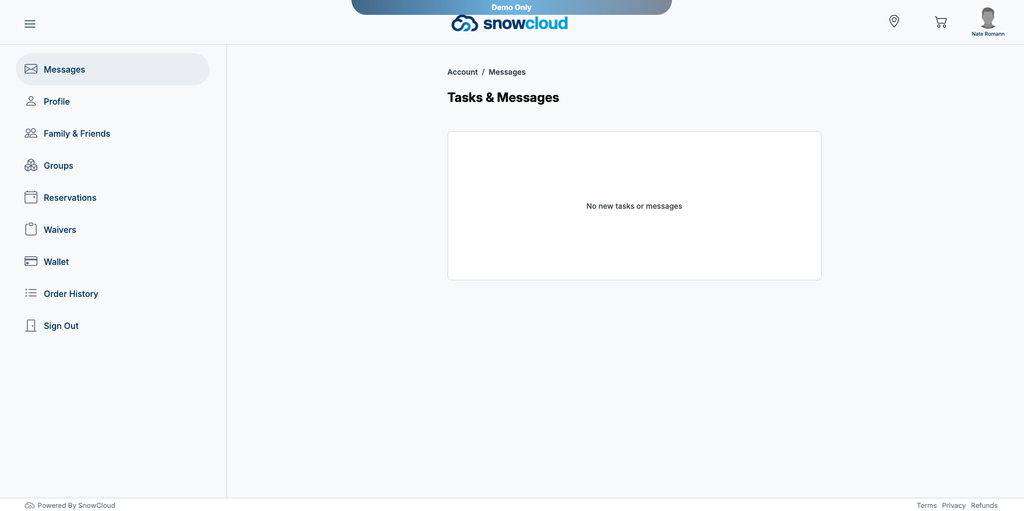
The first section of the guest profile displays any messages sent directly from the resort to the guest.
PROFILE #
The Profile section allows guests to view and update their personal information.
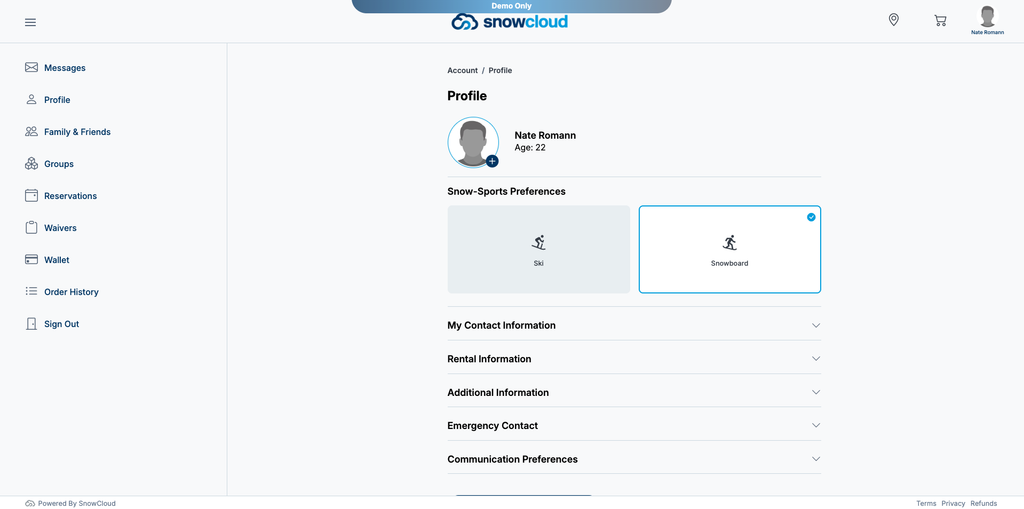
Photo & Sport Preferences
- Profile photo
- Snow sport preference — Ski or Snowboard
Contact Information
- Country
- Cell number
Rental Information
- Shoe size
- Height
- Weight
- Jacket size
- Pant size
- Gender
Special Information
- Grade level
- Special needs
- Allergies
- Emergency contact information
Communication Preferences Guests can opt in or out of receiving promotional emails from the resort.
FAMILY & FRIENDS #
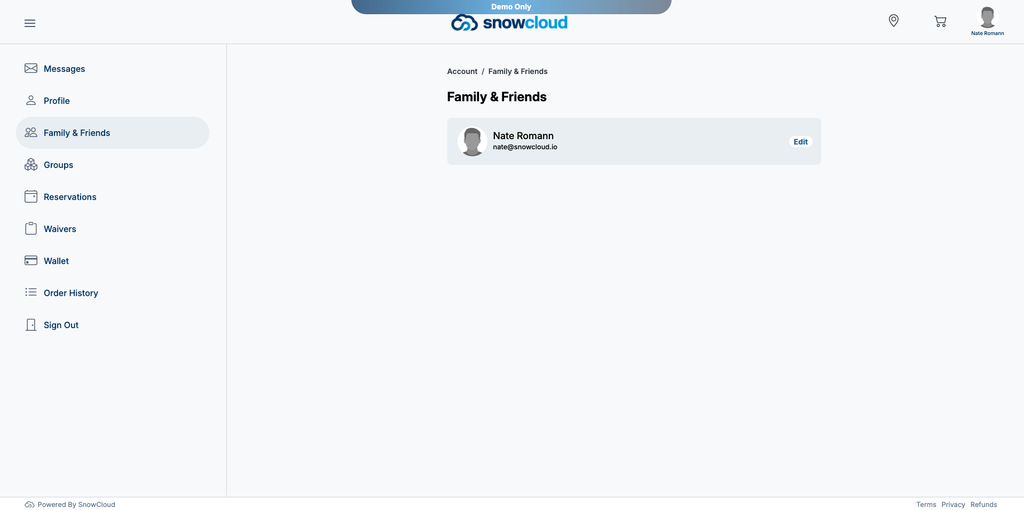
The Family & Friends tab displays the guest’s own profile as well as any linked family members or other guests connected to their account.
GROUPS #
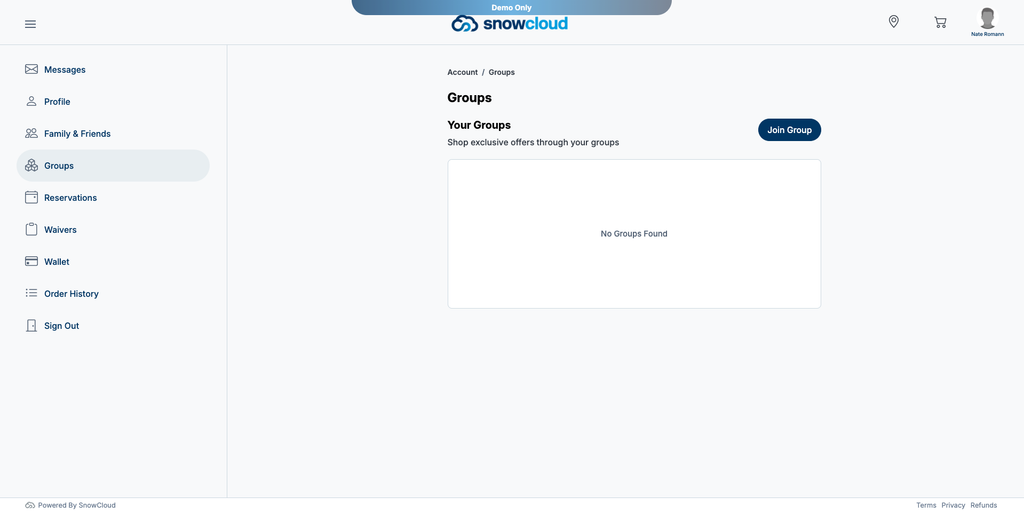
The Groups tab shows any private storefronts the guest is a part of. To join a new group, the guest selects Join Group and enters the required invitation code and PIN.
RESERVATIONS #
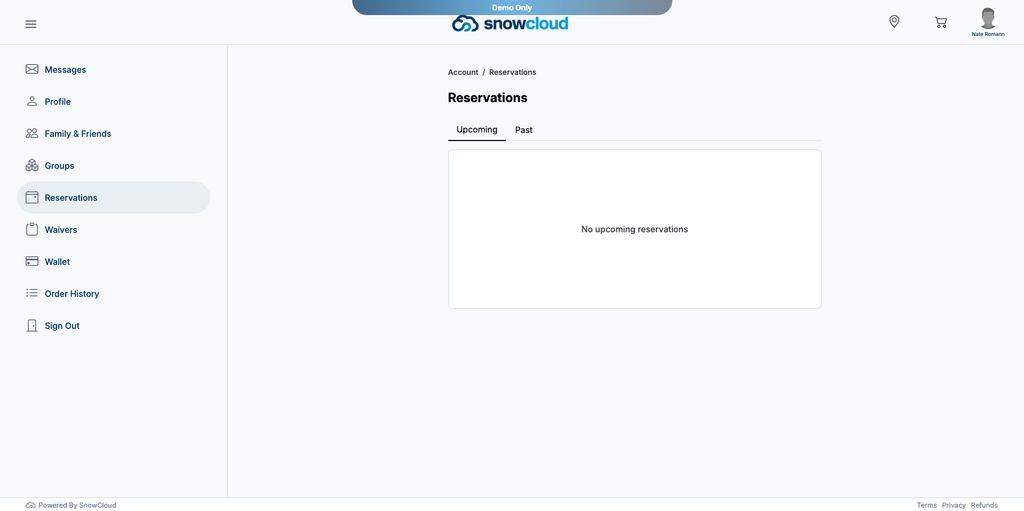
The Reservations tab displays all upcoming and past reservations associated with the guest’s account.
WAIVERS #
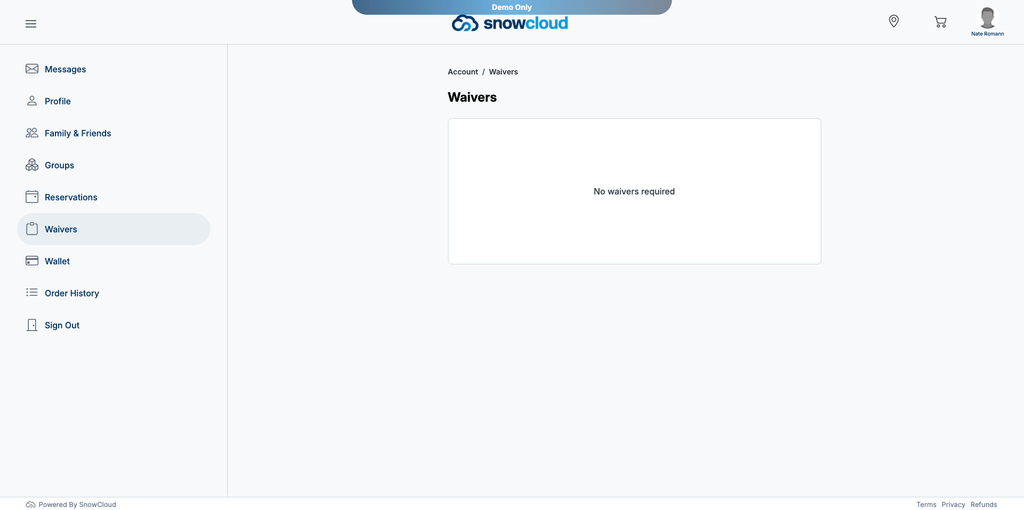
The Waivers tab displays all waivers associated with the guest’s account.
WALLET #
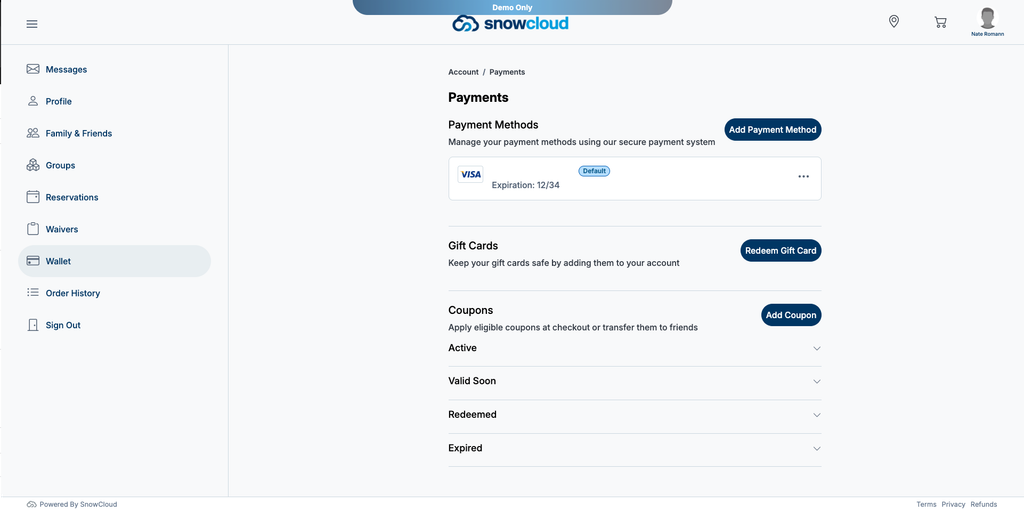
The Wallet tab is where guests manage payment and coupon activity. From this tab, guests can:
- View and manage saved payment methods
- Redeem gift cards
- Add coupons or view their full coupon library
- Transfer any transferable coupons they have received
- View coupons that are soon to be valid, already redeemed, or expired
ORDER HISTORY #
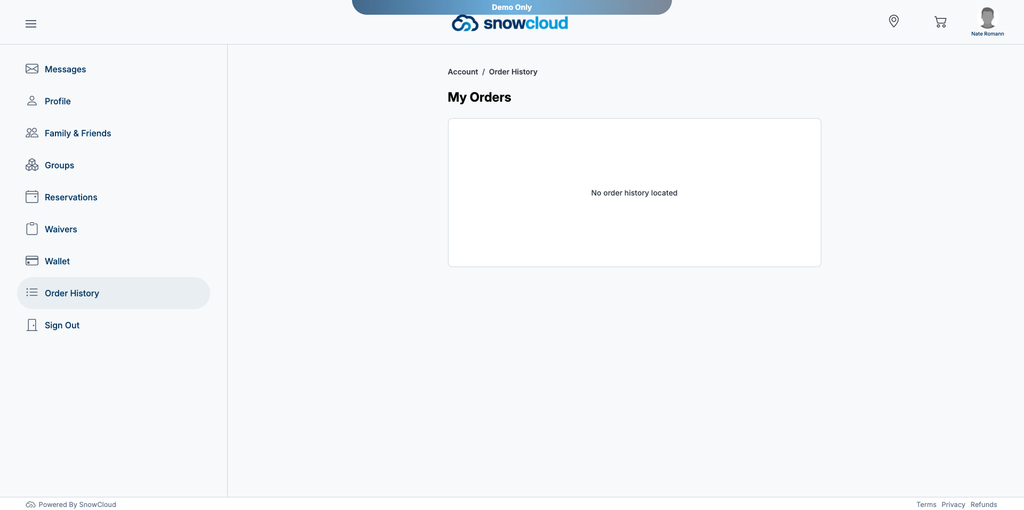
The Order History tab displays the guest’s complete purchase history. Guests can pull up any past sale receipt from this menu.
SIGN OUT #
The final tab allows the guest to sign out of their account.