
 AI Document Summary
This document covers the back-end portal workflow for creating food and beverage items, building modifiers, and grouping them into modifier sets in SnowCloud. It walks operations and customer success teams through the full setup — from basic item creation to advanced modifier structures for paid upgrades like double pours or size options.
Creating an F&B Item #
Every F&B item — from a well drink to a mixed drink to a burger — is built through the same process. This is the foundation of the F&B setup.
To create an F&B item:
- From the left-side menu, select Products
- Under Food & Beverage, select F&B Items
- Press the plus (+) button in the top-right corner
- Fill in the following fields:
- Item Name
- SKU
- Classification
- Price
- Item Group
- Recipe
- Menu Description
- Select Save and Add Details
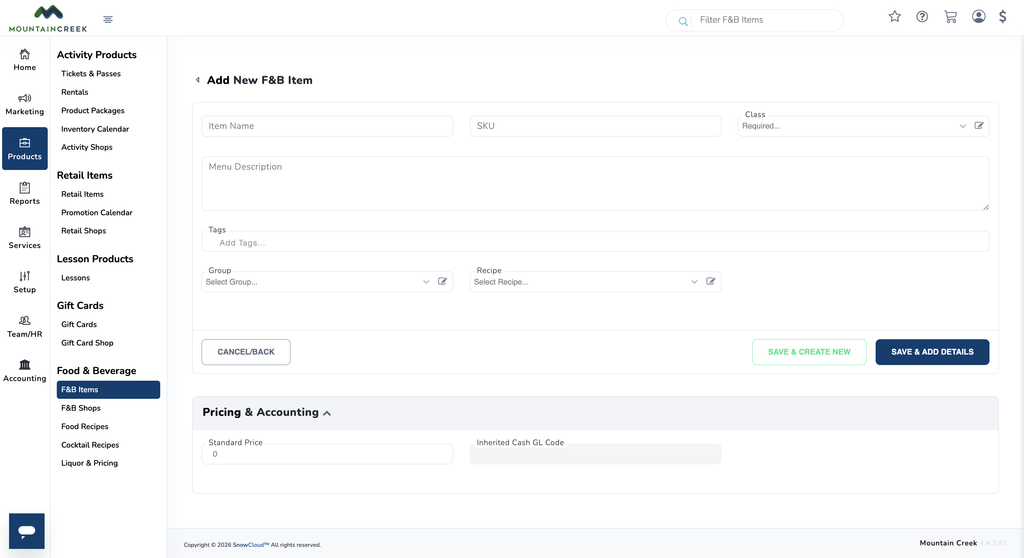
Once saved, you will be brought into the item’s configuration screen where additional details, modifiers, and pricing rules can be applied.
How Items, Modifiers & Modifier Sets Work Together #
Once a basic F&B item exists, it can be enhanced with modifiers — selectable options that appear at the point of sale. Before building modifiers, it helps to understand how the pieces connect. In SnowCloud, a full F&B menu offering is often assembled from multiple components rather than a single item.
The four-part structure works like this:
- F&B Item — the sellable product created in Products. Carries the actual price at the point of sale. Example: Double
- Modifier — a selectable option created in Setup that can link back to an F&B item for its cost. Example: Double 3oz: $16
- Modifier Set — a group of related modifiers created in Setup. Example: Tier 1 Liquor (containing Shot, Neat/Rocks, Double, etc.)
- Applied to Product — the modifier set is attached to the original drink or food item so the options appear at checkout. Example: Deep Eddy Vodka with Tier 1 Liquor modifier set attached
Note for operations teams: Modifiers are only required to connect to an F&B item when they carry an added cost. Simple modifiers like No Onion or Extra Sauce (with no charge) do not need a connected product.
The remaining sections of this guide walk through building each of these pieces in the correct order.
Creating a Cost-Carrying F&B Item (for Paid Modifiers) #
When a modifier will add cost at the point of sale — for example, a Double pour or a Large size upgrade — the added cost comes from an underlying F&B item that the modifier links to. This section covers building that cost-carrying item.
To create a cost-carrying F&B item:
- Navigate to Products → F&B Items (same path as Section 1)
- Press the plus (+) button in the top-right corner
- Create a new item using the modifier’s name (for example, Double)
- Enter the additional price that the modifier will add at the point of sale
- Select Save and Add Details
Important: The cost-carrying F&B item is what gives the modifier its price. If this item is not created, the modifier will not be able to apply an added charge at checkout.
Creating a Modifier #
Modifiers are managed under the Setup section of the portal, separately from the F&B items themselves. This is where you define the selectable option that will appear at the point of sale.
To create a modifier:
- From the left-side menu, select Setup
- Under F&B Products, select Modifiers
- Press the plus (+) button to create a new modifier
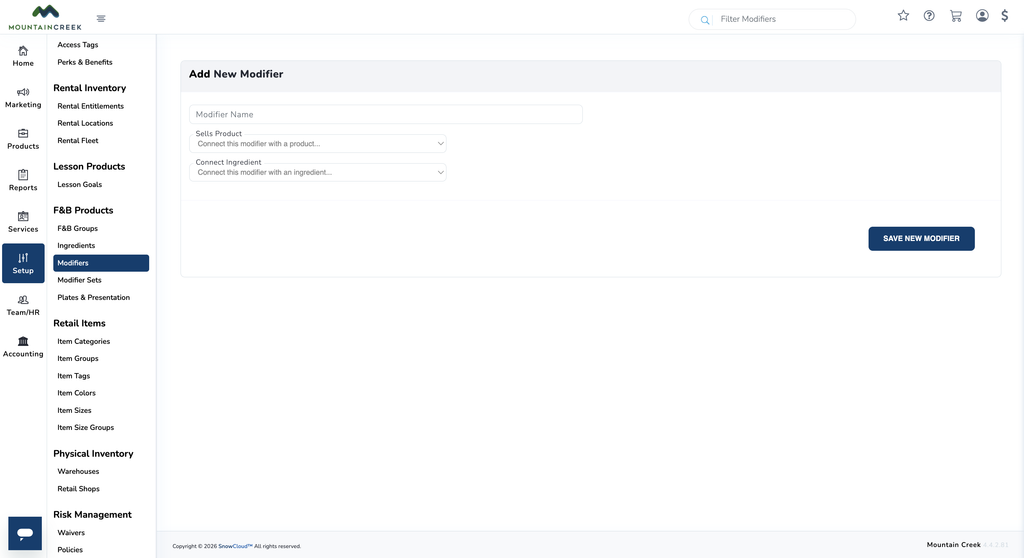
- Fill in the following:
- Modifier Name (for example, Double 3oz: $16)
- Sells Product — connect this modifier to the cost-carrying F&B item created in Section 3
- Save the changes
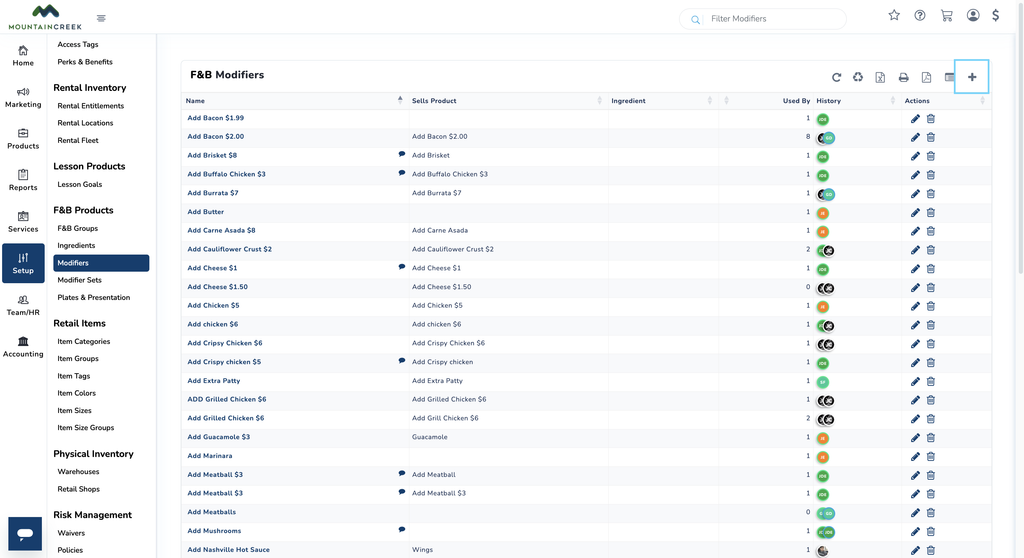
Note for operations teams: The Sells Product connection is only required for modifiers that carry an added cost. If a modifier does not need to add a charge (for example, No Ice or Extra Sauce at no cost), leave the Sells Product field blank.
Building a Modifier Set #
A Modifier Set groups related modifiers together so they can be attached to an F&B item as a single package. For example, a Tier 1 Liquor set might contain Shot, Neat/Rocks, and Double.
To build a modifier set:
- From the left-side menu, select Setup
- Under F&B Products, select Modifier Sets
- Press the plus (+) button in the top-right corner
- Fill in the following fields:
- Set Name
- Selection Type
- Min Selections
- Max Selections
- Add the modifiers created in Section 4 (for example, Double) into the set
- Select Save Modifier List
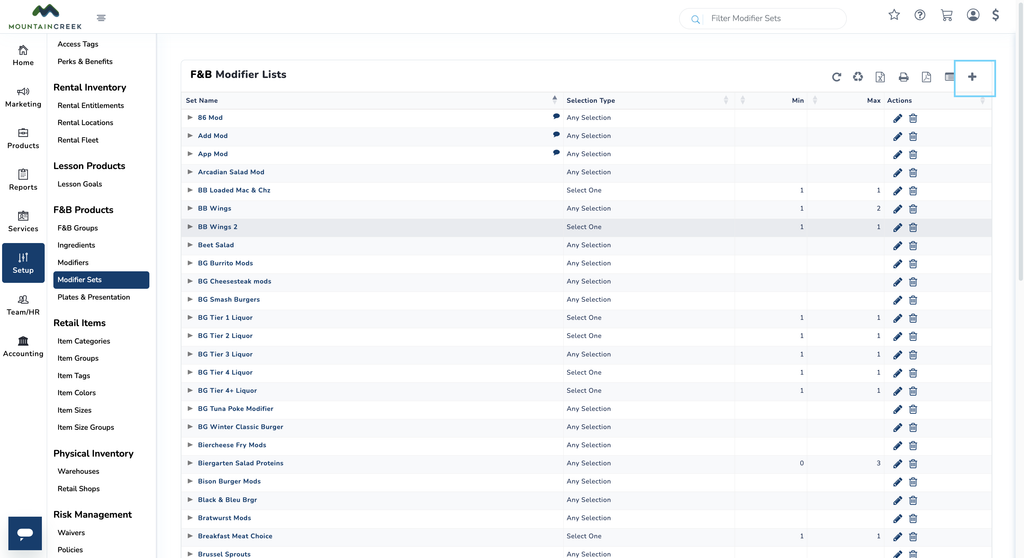
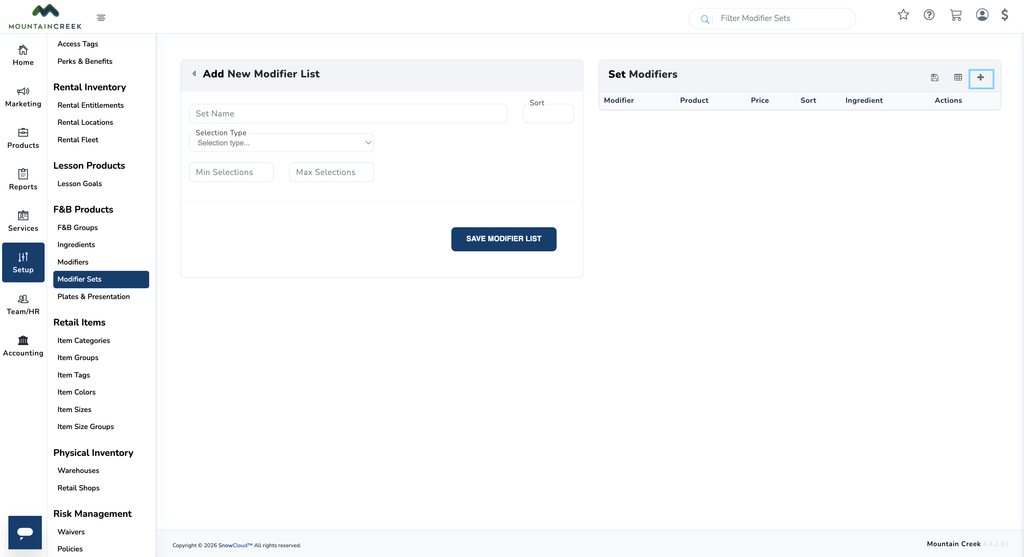
Note for operations teams: A single modifier set can hold multiple related modifiers. Group them by how a guest would choose between them — for example, a Liquor Preparation set holding Shot, Neat, Rocks, and Double as a single decision block.
Applying a Modifier Set to an F&B Item #
Once the modifier set has been built, it is attached to the original F&B item so the options appear at the point of sale.
To apply a modifier set to a product:
- Return to the original F&B item (for example, Deep Eddy Vodka)
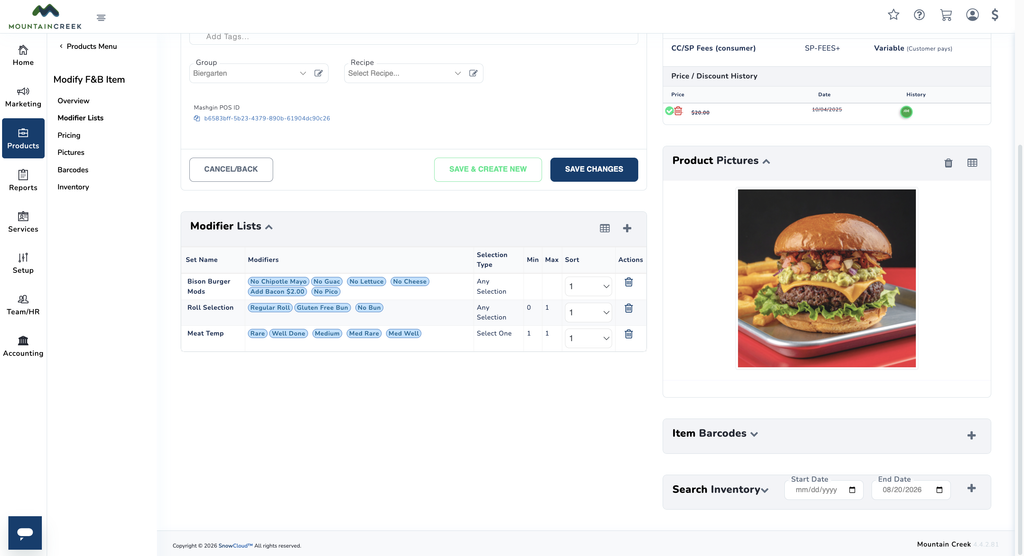
- Open the Modifier Lists section on the item
- Press the plus (+) button in the top-right corner of that section
- Select the modifier set created in Section 5
- Save the changes
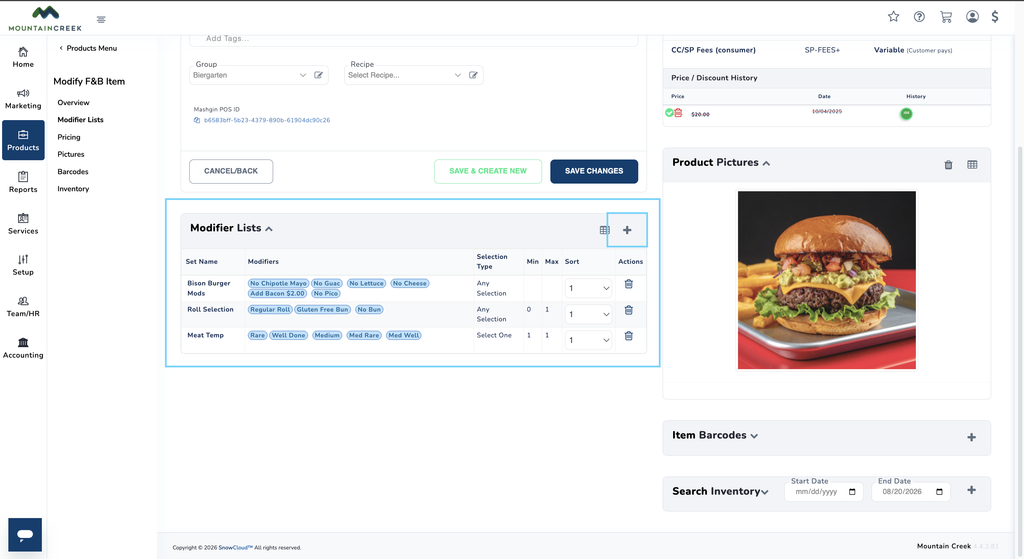
Once applied, staff will see all options from the modifier set — including any paid upgrades like Double — when adding the item at the point of sale.
Note for operations teams: Once a modifier set has been built, it can be reused across multiple F&B items. Build the set once, then attach it to any item that should offer the same options.